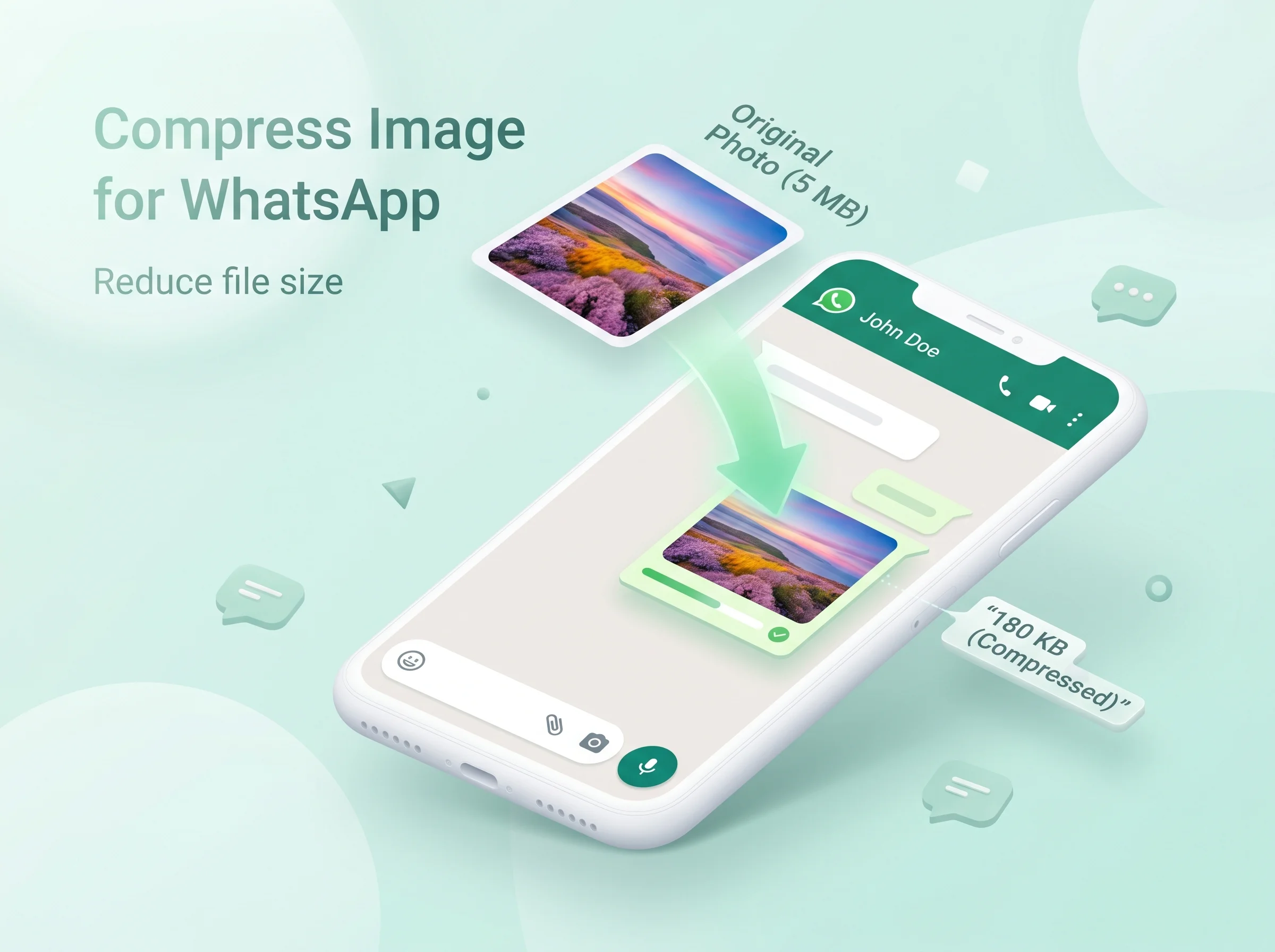
Compress Image for WhatsApp Free Online | Fast & Lossless

You snap a beautiful photo on your phone. You hit send on WhatsApp. And then it happens — the image takes forever to upload, looks blurry on the other side, or worse, gets rejected because the file is too big. Sound familiar?
If you have ever lost a perfect picture to WhatsApp’s aggressive auto-compression, you are not alone. Millions of people search every month for a way to compress image for WhatsApp free online without installing apps, without losing detail, and without dealing with watermarks or signups.
Here is the good news: you do not need expensive software, you do not need Photoshop skills, and you do not need to sacrifice quality. In this guide, you will learn exactly how WhatsApp handles your photos, what file sizes actually work, and the fastest way to shrink any image — right from your browser, on any device, in under 10 seconds.
By the end of this article, you will know how to send crystal-clear photos that load instantly, fit under WhatsApp’s limits, and look amazing on every screen.
1. Why You Need to Compress Image for WhatsApp Free Online
Smartphones today shoot photos in 12MP, 48MP, and even 200MP. A single picture can easily be 5MB to 25MB. WhatsApp was never built to manage such large files, and when it attempts to, two frustrating things happen:
• Your photo loses sharpness and gets a fuzzy, washed-out look.
• Your upload eats data and takes ages on slower networks.
• Important details — text on receipts, faces in group shots, product labels — become unreadable.
When you compress a picture for WhatsApp free online before sending it, you maintain power. You decide how much detail to keep. You decide the final size. WhatsApp stops butchering your picture because you already gave it a clean, lightweight version.
This matters for everyone — students sending assignments, sellers sharing product photos, parents posting kids' pictures in family groups, real estate agents sending property shots, and freelancers delivering work samples.
2. WhatsApp Image Size Restrictions (Updated)
Knowing the exact limits saves you a lot of headaches. Here is the latest breakdown:
WhatsApp Feature | Maximum File Size | Recommended Dimensions |
Regular photo (in chat) | 16 MB | 1600 x 1600 px or smaller |
Photo sent as document | 2 GB | Any (original quality kept) |
Profile picture (DP) | ~100 KB after upload | 640 x 640 px |
Status / Story | 16 MB | 1080 x 1920 px (9:16) |
Group icon | ~100 KB after upload | 640 x 640 px |
HD photo mode | Up to 16 MB | Up to 4096 px long edge |
The key that most people miss is that, unless you send it as a document, WhatsApp will still compress your file on its servers even if it is smaller than 16MB. So the goal is not just to stay under the limit. The goal is to send the smallest possible file that still looks great.
Quick Answer (Featured Snippet)
To compress image for WhatsApp free online, upload your photo to a browser-based image compressor like Tooldit, choose a target size below 1 MB (or 100 KB for a DP), and download the optimised file. The whole process takes under 10 seconds and keeps your photo sharp.
3. How WhatsApp Auto-Compression Actually Works
When you send a photo normally, WhatsApp does three things automatically:
1. It resizes the image, usually capping the long edge around 1600 pixels.
2. It re-encodes it as JPEG at roughly 60–75% quality.
3. It strips out metadata like location, camera model, and editing history.
This works fine for snapshots. But if you took a high-detail shot — say, a screenshot of a document, a zoomed-in product photo, or a sunset with delicate colour gradients — that re-encoding stage destroys subtle details.
When you pre-compress your photo with a smart online tool, you choose the exact resolution and quality level. WhatsApp then has very little extra work to do, and your image arrives looking almost identical to the version you uploaded.
Read WhatsApp Help Center guidelines for official media size and format.
4. The Best Way to Compress Image for WhatsApp Free Online
You have three main options. Here is how they compare honestly:
Method | Speed | Quality | Privacy | Cost |
Browser-based tool (Tooldit) | Very fast | Excellent | Files processed locally | Free |
Mobile app from app store | Medium | Good | Often requires permissions | Free with ads / paid |
Desktop software (Photoshop, GIMP) | Slow | Excellent | Local | Paid / steep learning curve |
WhatsApp's built-in compression | Automatic | Poor for detailed images | N/A | Free |
For 95% of people, a free online image compressor is the right answer. It works on iPhones, Androids, Windows, Macs, Chromebooks, and even older devices. There is nothing to install, nothing to update, and nothing to learn.
5. Step-by-Step: Using Tooldit's Image Compressor
Here is the exact workflow you can follow right now. Any phone or computer with a browser may use it.
4. Open your browser and go to the Tooldit image compressor tool.
5. Tap or click the upload area and pick your photo (JPG, PNG, WebP, or HEIC).
6. Choose your target — either a quality percentage (75% is a great default) or a target file size.
7. Hit "Compress". The tool processes the image in your browser, so your photo never sits on a stranger’s server longer than it has to.
8. Preview the result side by side with the original.
9. Download the smaller version to your phone or desktop.
10. Open WhatsApp and send the compressed photo as a regular image — WhatsApp will barely touch it now.
Total time: about 10 to 20 seconds. Total cost: zero. Total quality loss: usually invisible to the human eye.
Pro Tip
If you want absolutely zero compression from WhatsApp on top of yours, send your finished file as a “Document” instead of a "Photo". WhatsApp keeps documents pixel-perfect.
6. Which Format Is Best: JPG, PNG, or WebP?
Format choice changes everything. What you need to know in simple terms is as follows:
Format | Best For | File Size | Transparency |
JPG / JPEG | Photos, selfies, scenery | Smallest for photos | No |
PNG | Screenshots, logos, text images | Larger than JPG | Yes |
WebP | Modern all-rounder | Smallest overall | Yes |
HEIC | iPhone originals | Small but limited support | Yes |
For WhatsApp, JPG is almost always the safest pick. It is universally supported, compresses photos beautifully, and never causes display problems on the receiver’s phone.
Use PNG only when you need a transparent background or when you are sending a screenshot full of text. Convert HEIC to JPG before sending, because some Android phones still struggle with it.
7. How to Compress Image for WhatsApp DP (Profile Picture)
Your WhatsApp profile picture has its own tight limits. WhatsApp displays your DP at 640 by 640 pixels and shrinks it to roughly 100 KB after upload. If you upload a 10MB photo, WhatsApp aggressively crushes it — and that is why so many people end up with a pixelated DP.
The Fix
11. Crop your photo to a perfect square first.
12. Resize it to 640 x 640 pixels using a free online tool.
13. Compress it down to around 80–100 KB.
14. Upload it to WhatsApp as your new profile picture.
This one workflow alone solves the most common DP problem: a sharp, clean profile photo that loads instantly for everyone who messages you.
8. How to Compress Image for WhatsApp Status
Status updates use a vertical 9:16 frame. The ideal size is 1080 x 1920 pixels. Anything larger gets cropped or compressed roughly. Anything smaller looks soft on modern phones.
• Resize the long edge to 1920 pixels.
• Keep file size under 1 MB for instant loading.
• Use JPG quality between 75% and 85% for the best balance.
• Avoid adding heavy text overlays before compressing — the text gets fuzzy. Add text after.
9. Mobile vs Desktop: Best Methods Compared
On Mobile (Android & iPhone)
Open Tooldit in Chrome or Safari. Upload straight from your camera roll & compress. Save to gallery. Open WhatsApp and send. No app store visit is needed, and no storage is taken up by another tool you will use twice a year.
On Desktop (Windows, Mac, Linux, ChromeBook)
This is the power-user workflow. You can drag in dozens of photos at once, batch-compress them, and then send them through WhatsApp Web. When you need to share a whole event album or a product catalogue, this is the easiest way.
10. Common Mistakes to Avoid
• Resizing too small. Anything below 800 pixels on the long edge looks weak on modern phones.
• Over-compressing. Below 30% JPG quality, you get visible blocks and banding.
• Sending HEIC files to Android friends. Convert to JPG first.
• Compressing screenshots as JPG. Text becomes blurry — use PNG or WebP instead.
• Trusting random tools that ask for sign-ups, payments, or strange permissions.
• Forgetting to preview the result before downloading.
11. Pro Tips From Image Optimization Experts
Tip 1: Aim for the “invisible compression” zone
For most photos, a JPG quality setting between 70% and 80% removes file size you do not need without removing detail you can actually see. Below 60%, your eye will start to notice.
Tip 2: Always resize before compressing
A 6000-pixel-wide photo at 80% quality is still huge. Resize first to the dimension you actually need, then compress. The combined effect is what gives you those impressive 90%+ size reductions.
Tip 3: Send as document when quality is critical
Sharing a wedding photo or a portfolio piece? Compress to roughly 1–2 MB, then send as a “Document.” The receiver gets your file untouched.
Tip 4: Strip metadata for privacy
Camera photos often store GPS location. Good online compressors remove this automatically. If privacy matters, double-check that EXIF stripping is on.
Tip 5: Batch-process recurring tasks
If you regularly send product photos or event shots, learn one tool well. Tooldit lets you batch-compress multiple images at once, saving you minutes every single day.
12. Frequently Asked Questions (FAQs)
How do I compress image for WhatsApp free online without losing quality?
Upload your photo to a browser-based tool like Tooldit, choose JPG quality between 75% and 85%, and resize the long edge to around 1600 pixels. You will get a sharp image well under 1 MB.
What is the maximum image size WhatsApp allows in 2026?
WhatsApp accepts photos up to 16 MB when sent as images, and up to 2 GB when sent as a document. For best speed, keep regular photos under 1 MB.
Why does WhatsApp make my photos blurry?
WhatsApp re-compresses every photo you send as an image. If your file is large or highly detailed, the re-compression destroys fine details. Pre-compressing before sending fixes this.
Can I compress an image for WhatsApp DP under 100 KB?
Yes. Crop to 640 x 640 pixels, then compress at 70–80% JPG quality. You will easily land near 80–100 KB with a clean, sharp result.
Is it safe to use a free online image compressor?
It is safe when you pick a tool that processes files in your browser, does not require sign-up, and clearly states no images are stored. Tooldit follows these privacy-friendly practices.
Should I send photos as "Photo" or "Document" on WhatsApp?
Send it as a photo for casual sharing — small file, instant preview. Send it as a document when quality is critical, like wedding photos, portfolio work, or important screenshots.
Does compressing an image reduce its resolution?
Not always. Compression can reduce file size without changing the pixel dimensions. Resizing is what changes resolution. Most tools let you do either or both.
What is the best free online tool to compress images for WhatsApp?
Tooldit’s image compressor works on every device, is completely free, has no watermark, and offers both quality control and target-size compression — ideal for WhatsApp.
Can I compress PNG files for WhatsApp?
Yes. PNGs can be compressed significantly using smart algorithms. For photos, convert PNG to JPG first for the smallest possible file.
How small should I make a photo for WhatsApp status?
Aim for 1080 x 1920 pixels and under 1 MB. This gives you crisp playback on modern screens with fast loading on any network.
Why is my WhatsApp profile picture blurry after upload?
You probably uploaded a photo that was too large or not square. WhatsApp aggressively compressed it. Pre-resize to 640 x 640 and compress to under 100 KB for sharp results.
Will compressing remove my photo’s GPS location data?
Good online compressors strip EXIF metadata, including GPS, automatically. This is a privacy bonus when sharing photos in groups.
Can I batch-compress multiple WhatsApp photos at once?
Yes. Use a desktop browser and a batch-supporting tool like Tooldit. You can compress dozens of photos in one go, then send them through WhatsApp Web.
Does compressing affect video files too?
This guide focuses on images. Videos have their own workflow. A separate Tooldit video compressor is recommended for that task.
Is there a way to compress image for WhatsApp free online directly on iPhone?
Yes. Open Tooldit in Safari, upload your photo from the Photos app, compress it, and save it back to your gallery. Then share through WhatsApp as usual.
External Linking Suggestions
• WhatsApp Help Center — Official media size and format guidelines.
• Google Web Fundamentals — Image optimisation best practices.
• Mozilla Developer Network (MDN) — JPEG, PNG, and WebP technical references.
13. Final Thoughts
Sending photos on WhatsApp should be quick, clean, and stress-free. The truth is that you do not need to suffer through blurry images, failed uploads, or endless apps. When you compress an image for WhatsApp free online with the right tool, you take back control of how your photos look on every screen they reach.
To recap what really matters:
• Pre-compress before sending so WhatsApp does not over-process your photo.
• Aim for around 1 MB or smaller for chat photos and under 100 KB for profile pictures.
• Stick with JPG for photos and PNG for screenshots.
• Send as a “Document” when pixel-perfect quality is non-negotiable.
• Use a browser-based tool like Tooldit to keep everything fast, private, and free.
Now it is your turn. Open Tooldit, drop in that photo you have been struggling to send, and watch it shrink to a perfect WhatsApp-friendly size in seconds. Your friends, family, and clients will thank you for the sharper, faster images — and you will never deal with “file too large” warnings again.
Bookmark Tooldit.com for your everyday image, PDF, and file tools — all free, all online, and all built to save you time.
Read also: Convert PNG Screenshot to PDF Online — Free in Seconds