Convert PNG Screenshot to PDF Online — Free in Seconds

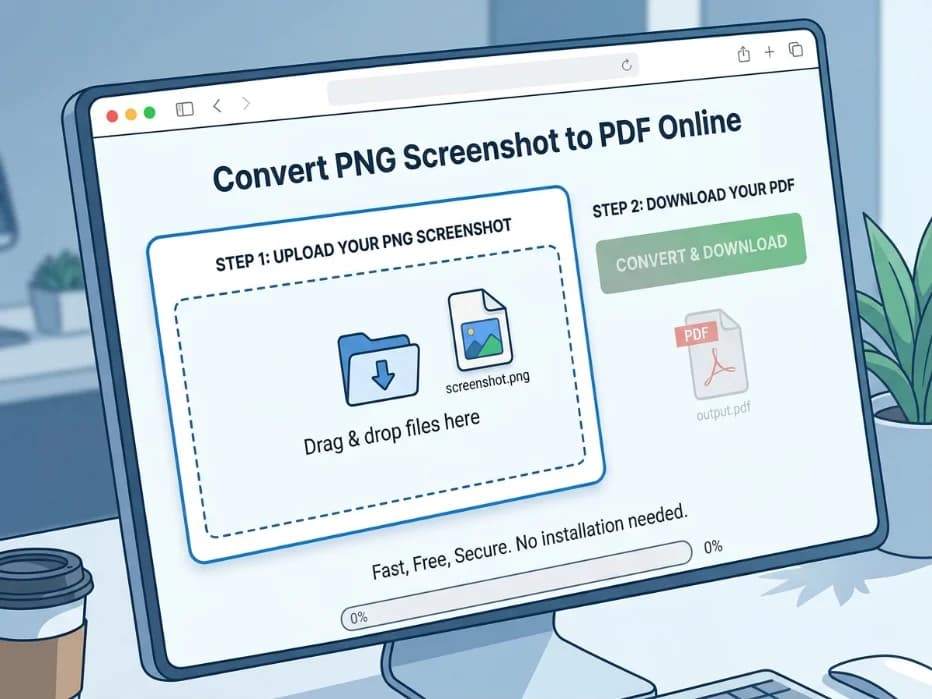
To convert PNG screenshot to PDF online, open a free converter in your browser, upload your PNG file, click the convert button, and download the PDF. You can also merge multiple screenshots into one PDF. The whole thing takes about 30 seconds; no signup is needed.
Introduction
You took a screenshot. Perhaps of a bank statement, a discussion, or a receipt. Now you need to send it as a PDF—but it’s a PNG file. Sound familiar?
Here’s the thing: most schools, job portals, and clients ask for PDFs. Not PNGs. So you’re stuck wondering how to convert a PNG screenshot to PDF online without paying for software or installing weird apps.
Good news—you don’t need any of that. There’s a fast, free way to do it right in your browser. Plus, you can even combine multiple screenshots into one neat PDF. Want to try it now? This can be completed in less than a minute.
Let’s break it down.
What Does It Mean to Convert PNG Screenshot to PDF Online?
Converting a PNG to PDF means changing the file format. The image stays the same—only the way it’s saved changes.
PNG is an image format. It’s what your phone or computer uses when you screenshot something. The PDF format, however, is a document format. It works on every device, looks the same everywhere, and feels more professional.
When you use an online converter, the tool takes your PNG and wraps it inside a PDF. You can do one screenshot at a time. Or stack a bunch of them into a single PDF document. In any case, the procedure takes place within your browser; no downloads are necessary.
Why You Should Convert PNG Screenshots to PDF
You might wonder if it’s really worth the switch. Honestly? Yes. Here’s why people do it every day:
Looks more professional. A PDF feels like a real document, not just a casual screenshot.
Combines multiple files. Turn 5 screenshots into 1 PDF—way easier to share.
Works everywhere. PDFs open on phones, tablets, laptops, and every browser.
Print-friendly. PDFs print exactly the same way every time.
Better for forms. Job sites and government portals usually only accept PDFs.
So whether you’re sending a chat receipt to your boss or uploading proof of payment, a PDF is the safer bet.
How to Convert PNG Screenshot to PDF Online in 6 Easy Steps
Ready to give it a try? Here's the easiest method to complete it.
Step 1: Open a Free Online Converter
Open your browser. Head to a trusted converter site. Make sure it’s one that doesn’t ask for a signup or email.
Step 2: Upload Your PNG Screenshot
Click the upload button. Or drag your PNG file into the box. If you want many screenshots in a single PDF, you may upload them all at once.
Step 3: Arrange the Order (If There Are Multiple Files)
Got more than one screenshot? Drag them up or down to set the page order. The first one becomes page 1, and so on.
Step 4: Click the Convert Button
Hit “Convert to PDF". The tool gets to work right away. Most of files complete in less than ten seconds.
Step 5: Preview the PDF
Take a quick look at the result. Make sure your screenshots look sharp and the order is right.
Step 6: Download Your New PDF
Click download. Your PDF saves to your phone or computer. That’s it—you’re done.
Want a tool that does all this without the hassle? You can use our free PNG to PDF converter that handles single or multiple screenshots in one click—no signup, no email, just fast results.
Top Perks of Using an Online PNG to PDF Tool
Why pick an online converter over desktop software? Here’s what you get:
Zero cost. No paid plans, no trials, no hidden fees.
Lightning fast. In less than ten seconds, most files are finished.
No installs. Just open the website and go.
Works on every device. Phone, tablet, Windows, Mac—your call.
Batch conversion. Merge 10 or 20 screenshots into one PDF in seconds.
Private and safe. Trusted tools delete your files right after the job’s done.
For most folks, online tools are the smarter pick. Faster, cheaper, and just easier
Common Problems and How to Fix Them
Sometimes things don’t go right the first time. Here’s how to handle the most common issues.
Problem 1: The PDF Pages Look Stretched
Fix: Pick a tool that keeps the original size. Some converters force everything to A4 and stretch your screenshot. Look out for the "fit to image" or "original size" options.
Problem 2: The Tool Asks for an Email
Fix: Skip that site. You shouldn’t have to give up your email just to convert one file. Many free tools may be used without registering.
Problem 3: The Screenshot Looks Blurry
Fix: The tool may have compressed it too hard. Try a converter with a high-quality setting, or upload a sharper PNG to start with.
Problem 4: Multiple Screenshots Out of Order
Fix: Before clicking convert, drag the files into the order you want. Most good tools let you rearrange easily.
Problem 5: File Won’t Upload
Fix: Check your internet. If the file is huge (over 10 MB), compress the PNG first or pick a tool with a higher upload limit.
Online Converter vs Desktop Software: Which Wins?
Both options can do the job. But which one fits you better? Here’s a quick side-by-side:
Feature | Online Tool | Desktop Software |
Cost | Free | Often paid |
Setup Time | Zero seconds | 10–20 minutes |
Works On | Any device with browser | Only installed devices |
Storage Used | None | Several MB to GB |
Internet Needed | Yes | No |
Updates | Automatic | Manual |
Best For | Quick, one-off jobs | Heavy daily users |
For most people—students, freelancers, and small business owners—online tools win every time. They’re faster and don’t cost a thing.
Pro Tips for the Best PNG to PDF Results
Want clean, professional PDFs every time? Try these insider tips:
Always preview the PDF before sending it out—check for blurry or missing pages
Crop your PNG screenshots first to remove clutter like browser tabs or taskbars
Use batch conversion to merge related screenshots into one tidy PDF document
Rename the PDF something clear, like "receipt_oct_2026.pdf", instead of “doc1.pdf”
Compress the PDF after converting if you need to email it (under 5 MB is best)
In case you need them later, save a duplicate of the original PNG screenshots
Stick to tools that delete your files after conversion for privacy’s sake
Why Tooldit.com Is the Best Free PNG-to-PDF Converter
Look, you’ve got plenty of converter options. So why pick Tooldit.com? Here’s the straight answer:
100% free. No premium tiers, no “unlock more features” walls.
No signup, no email. You don’t hand over anything just to convert a file.
Beginner-friendly. The layout is so simple, even your grandma could use it.
Trusted by US users. Thousands of students, freelancers, and business owners use it daily.
If you want a tool that just works without the runaround, Tooldit.com is the one to bookmark.
Frequently Asked Questions
Can I combine multiple PNG screenshots into one PDF file?
Yes, you can. Most online converters let you upload several PNG screenshots at once and merge them into a single PDF. Just drag the files into the order you want before clicking 'convert'. This works great for receipts, chats, or step-by-step tutorials.
Will my screenshot lose quality when I convert PNG to PDF?
In most cases, no. Good converters keep the original quality so your screenshot looks crisp inside the PDF. Some lower-end tools compress images too aggressively, so always preview the file before downloading. Pick a converter with quality settings if sharpness matters.
Is it safe to upload screenshots to online PDF converters?
Yes, when you use a trusted tool. Reliable converters delete your files right after the job’s done and don’t share your data. Avoid sites that ask for signups, emails, or payment details. Stick to known platforms with clear privacy policies.
Can I convert PNG to PDF on my iPhone or Android phone?
Absolutely. Online converters work in any mobile browser. Just open the site, upload your screenshot from your phone’s gallery, and download the PDF. iPhones also have a built-in option through the Files app, but online tools are usually faster and offer more features.
What’s the maximum PNG file size I can convert to PDF online?
Most free online tools handle PNG files up to 10 to 20 MB. That’s plenty for everyday screenshots. If your file is bigger, compress it first or look for a tool with higher upload limits. Premium versions usually allow much larger files.
Why won’t my email accept the PNG, but the PDF works?
Many email services and online forms only accept PDFs for official documents. PNGs are seen as casual image files, while PDFs are treated as proper documents. Converting your screenshot to PDF makes it more accepted for resumes, applications, and business attachments.
Final Thoughts
Learning to convert PNG screenshots to PDF online is one of those small skills that pays off big. It saves time, looks professional, and works for almost every situation—job apps, school forms, receipts, you name it.
The best part? You can do it for free, in under a minute, right from your browser. No software. No signup. No headaches.
Ready to try it yourself? Head over to Tooldit.com, upload your screenshot, and grab your shiny new PDF in seconds. Your future self will thank you the next time someone asks for that file “as a PDF.
Read also: WebP vs JPG vs PNG: Which Image Format Wins in 2026?