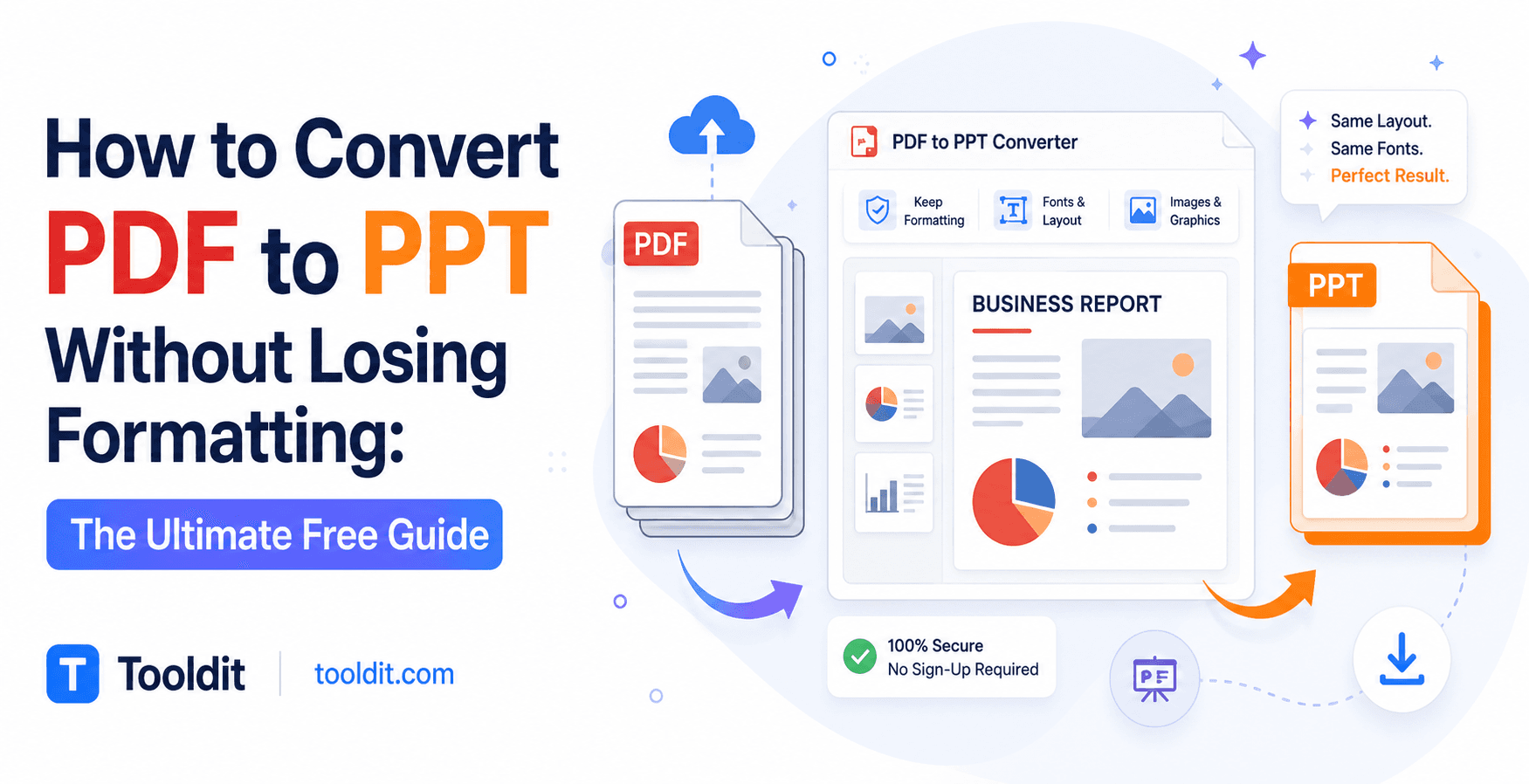
How to Convert PDF to PPT Without Losing Formatting: Free Guide

Picture this: you have a critical business presentation in an hour. Your boss sends you a sleek PDF deck, but you need to tweak three bullet points and swap out a slide picture. You open the file, try to edit it, and realize it is completely locked tight.
So, you try a random internet converter. You open the new PowerPoint file, and it is a complete mess! The fonts look wrong, images are shifted to the side, and bullet points are totally scrambled. Talk about a total headache!
The good news is that it's a lot simpler than you might imagine to learn how to convert a PDF to PPT without losing formatting. You don't have to purchase expensive software or manually retype slides. Want to fix your slides right away? Let's walk through the simple steps using free tools on Tooldit.
What Happens When You Convert PDF to PPT?
When you turn a PDF into editable PowerPoint online files, a conversion engine reads the visual design of your document. It breaks down text strings, background colors, custom fonts, and vector graphics into individual slide objects.
Low-cost converters consider each PDF page as a single, flattened image. That means you end up with non-editable text boxes and blurry backgrounds. When planning a high-stakes presentation, that is most definitely not what you want.
A quality PDF to slide conversion tool free system keeps elements separated into editable blocks. This allows you to click on headlines, change text, resize shapes, and swap images without destroying the original aesthetic layout.
Why You Need Exact Slide Layout Preservation
Whether you are a college student submitting a class presentation or a freelance consultant pitching a client, clean slides matter a lot. Here are five simple reasons why keeping the original design PDF to PPT layouts is essential:
1. Saves Hours of Manual Work: Retyping paragraphs and manually repositioning images takes forever.
2. Protects Your Brand Fonts: Preserving font styles keeps corporate brand identity completely consistent.
3. Maintains the Cleanliness of Charts and Vectors: Bar charts, graphs, and icon graphics maintain their sharpness and editability.
4. Prevents Uncomfortable Text Overlaps: When conversion is done correctly, text boxes do not become images.
5. Gives You Rapid Present Confidence: Enter meetings with your slides looking organized, polished, and professional.
Four Simple Steps to Convert PDF to PPT Without Losing Formatting
Ready to turn your locked document into an editable slide deck? Here is how to convert PDF to PPT without losing formatting using a simple 4-step process:
Step 1: Choose Your Source PDF File
Locate the PDF file on your computer, tablet, or phone. Ensure the file is not password-protected so the tool can parse the content.
Step 2: Upload Your File to the Converter
Drop your file into the converter box by dragging it. You can upload standard pitch decks, research reports, or slide handouts.
Step 3: Click the Convert Button
Hit the action button. The system scans the document, matches fonts, aligns image frames, and generates clean PPTX slides.
Step 4: Download and Open Your Editable PPTX
Download your newly created presentation file. Open it inside Microsoft PowerPoint, Google Slides, or Keynote to make your edits.
To save time, you can try a free PDF to PPT converter that does it for you in seconds — no signup needed.
Key Benefits of Using a Free PDF to Presentation Converter
Using a modern web tool to convert a PDF presentation to PPTX format gives you massive advantages over desktop software. What makes internet tools so fantastic is as follows:
• Zero Installation Required: Works directly inside Google Chrome, Safari, Microsoft Edge, or Firefox.
• Instant Speed: Converts standard 20-slide presentations in less than ten seconds.
• Works on Any Device: Easily convert files on Windows PCs, Apple Macs, iPads, or Android smartphones.
• High Accuracy OCR Engine: Recognizes scanned text and turns it into real, editable typing.
• Completely Free and Private: Process your files safely without monthly subscription charges or spam emails.
Common PDF Conversion Problems (And Simple Fixes)
Sometimes PDF files contain complex elements that act up during conversion. Look out for these common issues and quick fixes:
Problem 1: Missing or Replaced Custom Fonts
If your PDF uses rare custom fonts that PowerPoint does not recognize, text may shift into standard Arial or Times New Roman.
Fix: Open the exported PPT file and highlight text boxes to re-select your preferred brand font in one click.
Problem 2: Scanned Image PDFs Are Not Editable
If your PDF was created by physically scanning a paper document, standard converters treat pages like big flat photos.
Fix: Ensure you select an instant PDF to PowerPoint maker equipped with built-in Optical Character Recognition (OCR).
Problem 3: Scrambled Bullet Points and Alignment
Using low-quality online tools often turns bullet lists into separate floating text lines that are hard to group.
Fix: Use a high-precision converter like Tooldit that groups list items into structured text boxes.
Pro Tips for Perfect PDF to Presentation Conversions
1. Compress Large PDF Files First: If your PDF contains huge high-res photos, shrink the file size slightly before uploading.
2. Check Slide Aspect Ratios: Standard PDFs use 4:3 or 16:9 widescreen layout dimensions. Match your PowerPoint settings.
3. Export PDF to PowerPoint Fonts Intact: Ensure your PDF generator embeds standard fonts before exporting.
4. Convert Vector PDF to Presentation Slides: Vector graphics maintain sharp edges even when enlarged on big projection screens.
5. Group Objects After Exporting: Use PowerPoint's group shortcut (Ctrl+G or Cmd+G) to keep complex illustrations together.
Why Tooldit Is the Best Free Choice for American Users
You want a program that works immediately, without annoying paywalls or constraints, when you need to export a PDF to PowerPoint with fonts intact. For this reason, Tooldit is trusted by millions of students, educators, and business people nationwide.
Here is why Tooldit stands out as the best free choice:
• 100% Free Forever: Enjoy unlimited PDF conversions without paying subscription fees or entering credit card details.
• Absolute Privacy Protection: Your uploaded documents are processed securely and deleted automatically from servers.
• Zero Registration Required: Convert PDF slides without text shift instantly as a guest visitor.
• Clean Ad-Light Interface: Experience a smooth, distraction-free screen optimized for mobile and desktop screens.
• Built for US Professionals: Designed specifically to handle standard US Letter and Widescreen presentation formats perfectly.
Frequently Asked Questions
Can I convert PDF to PPT without losing formatting for free?
Yes, you can! Tools like tooldit.com allow you to convert PDF files into fully editable PowerPoint slides completely free without signing up or paying fees.
Why does my text shift when converting PDF files to slides?
Text shifts happen when cheap converters fail to match custom font metrics or line spacing. Using a best free PDF to PPT converter online ensures precise margin and layout alignment.
Will converted PowerPoint slides remain fully editable?
Yes, absolutely. The conversion process extracts text, shapes, and images into separate layers so you can edit text boxes, change colors, and resize objects freely.
Is it safe to upload confidential business PDFs to Tooldit?
Yes, it is 100% safe. Tooldit processes your files using secure SSL encryption and immediately deletes all uploaded documents following conversion.
Can I convert a PDF to PPT slides exactly as they are on Mac and mobile phones?
Yes! Because Tooldit is a browser-based tool, it works seamlessly on Mac computers, Windows PCs, iPhones, iPads, and Android mobile devices.
How do I edit scanned PDF slides in PowerPoint?
To edit scanned pages, run your document through an OCR-powered converter on Tooldit. It reads the image text and turns it into editable presentation typing.
Final Thoughts: Convert Your Presentation Slides with Ease
Struggling with locked presentation decks does not have to ruin your workday. Knowing how to convert PDF to PPT without losing formatting empowers you to edit slides, update statistics, and deliver polished presentations in minutes.
Ready to transform your document right now? Head over to Tooldit to convert your PDF files into editable PowerPoint slides instantly for free. Bookmark our tool today and take total control of your slide decks!
Read also: Lorem Ipsum Generator With Custom Length: The Best Free Dummy Text Tool