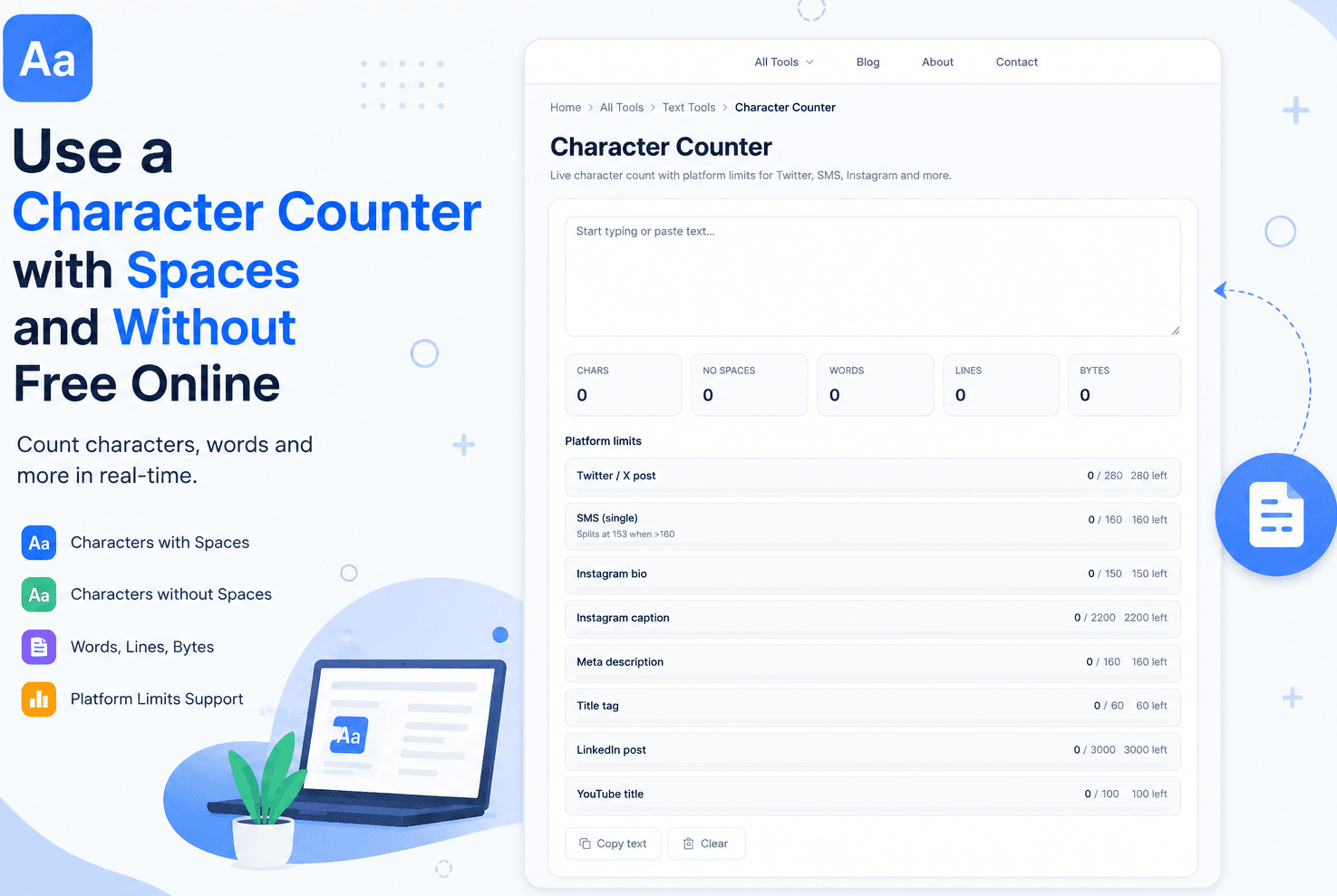
How to Use a Character Counter with Spaces and Without Free Online

Have you ever written a post for social media or an essay for school, only to get blocked by a character limit? Or maybe you pasted your draft into a form, but half of your last sentence got chopped off? That happens when platforms count empty spaces differently than you do. It can be super confusing and frustrating.
You do not have to guess your length or count letters by hand. The truth is, you can check both numbers in under two seconds. In this simple guide, you will learn how to use a character counter with spaces and without to hit your target every single time. Let us explain how to get precise counts without any difficulty.
What Is a Character Counter with Spaces and Without?
A character counter is a simple web tool that checks how long your text is. It looks at every single piece of your writing and gives you two separate numbers.
The first number includes everything you typed. That means letters, numbers, punctuation marks, and empty blank spaces. The second number ignores the blank spaces completely. It counts only the actual letters and symbols. You can stick to strict rules for school papers, job applications, and online posts without making awkward mistakes by using a reliable character count tool.
Why You Need a Character Counter with Spaces and Without
Different tools and websites use different standards to judge your writing. Here is why you need a character counter before hitting submit:
• Avoids cut-off text: Social media apps like X (Twitter) and Instagram have strict limits that include spaces.
• Meets application rules: Job applications and college essays often set strict character limits without spaces.
• Saves formatting time: Knowing both numbers keeps you from deleting good words when only spaces were the issue.
• Enhances post visibility: Search engines like Google cap your meta descriptions at 160 characters with spaces.
• Prevents surprise errors: Seeing both metrics side-by-side guarantees your message fits anywhere.
How to Use a Character Counter with Spaces and Without: Step-by-Step
Checking your text size takes only a moment. Follow these easy steps to get your exact counts in seconds.
Step 1: Write or Copy Your Text
Type out your message or copy your essay from your word processor.
Step 2: Open a Free Online Tool
Open your web browser and go to a trusted character count page.
Step 3: Paste Your Writing
Click inside the text box and paste your words right into the space.
Step 4: Check Your Total Numbers
Look at the counter display. You will see two separate tallies immediately.
Step 5: Trim or Edit Your Words
If your text is too long, remove extra words until both numbers fit your target limit.
Step 6: Copy Your Final Text
Copy your finished writing and paste it into your assignment or online form.
To save time, you can try a free online tool that does it for you in seconds — no signup needed.
Great Benefits of Using Free Web Text Counters
Using a browser tool to check your writing comes with awesome perks. When you use an online character counter, you get these top benefits:
• Instant results: You see your character counts update live as you type or paste.
• No downloads needed: Installing large programs or additional browser apps is not required.
• Completely free: You get full access without paying subscription fees or entering credit cards.
• Private and safe: Your text stays inside your browser and never gets saved on external servers.
• Works anywhere: You can use the tool on your phone, tablet, or laptop wherever you have internet.
Common Text Counting Mistakes and Easy Fixes
Even basic text counting can result in minor errors. Here is how you can easily avoid or fix them.
Counting Only Words
Many people focus only on word count. Online forms, however, typically block you based on the total number of characters. Always check character limits first.
Confusing Spaces With Characters
One common mistake is to believe that a 500-character limit does not include spaces. Always check if the form guidelines mean with or without spaces.
Extra Invisible Spaces
When you copy text from PDF files, extra blank spaces often get pasted in. Clean up double spaces to drop your total count quickly.
Ignoring Line Breaks
Pressing the "Enter" key to start a new paragraph creates invisible character codes. Keep line breaks tidy if you are close to your limit.
Comparing Spaces Included vs. Spaces Excluded
Knowing the difference between the two counting methods is quite useful in your regular writing.
Here is a summary of the two choices instead of a difficult-to-read chart:
• What Gets Counted: With spaces, it counts every key press, including spacebar taps. 'Without spaces' ignores all blank spaces completely.
• Primary Use Case: With spaces, it is used for social media posts, ad copy, and Google meta descriptions. 'Without spaces' is used for academic essays and official forms.
• Total Count Size: With spaces always produces a higher number. Without spaces, it gives a lower, more compact number.
• Why It Matters: Forms cut off your text if spaces are included in their hidden rules. Knowing both keeps your submission complete.
This makes using a dual counter the absolute best way to manage a character counter for free online.
Insider Tips for Managing Text Length
Want your writing to stay short and crisp without losing its meaning? Try these easy tips:
• Swap long words for short ones to cut down your letter count fast.
• Remove unnecessary words like "very," "really," and "that."
• Use contractions like "it's" instead of "it is" to save characters and spaces.
• Watch out for double spaces between sentences that creep in accidentally.
• Check your character counts before and after editing to track your progress.
These simple tricks will help you master any character counter in no time.
Why Tooldit Is Your Go-To Text Counter
When you need a character counter with spaces and without, Tooldit is the best tool for the job. Our site is designed specifically for US users who want fast, accurate results without any confusion.
You do not have to fill out registration forms or deal with annoying paywalls. It is 100% free, runs instantly in your browser, and respects your privacy by never storing your private text. Students, writers, and business owners across the country rely on our platform every day to keep their writing perfectly sized.
Frequently Asked Questions
How does a character counter with spaces and without work?
Your pasted content is scanned line by line by the tool. One total is calculated by counting each character and spacebar push, while another total is calculated by totally removing blank spaces.
Do spaces count as characters on Twitter and Instagram?
Yes, they do. Social media platforms include spaces, punctuation, and emojis in their total character limits.
Does pressing Enter count as a character?
Yes, line breaks and paragraph enters count as invisible characters in most web forms and character counters.
Why is my character count without spaces lower than my total count?
Your count without spaces is lower because it subtracts every blank space between your words, giving you the net number of letters and symbols.
Is it free to use the character counter on Tooldit?
Yes, it is completely free to use. You can check unlimited text samples with no payments or account signups needed.
Is my pasted text safe when using your character tool?
Yes, your writing is 100% safe. The counter runs locally in your web browser, meaning your text is never saved or shared anywhere.
Wrapping Up Your Text Counting
Keeping track of your text length does not have to feel like a guessing game. By using a free character counter, you can write with total confidence knowing your message will fit perfectly anywhere. Head over to Tooldit right now, paste your text, and get your instant character counts today!
Read also: How to Crop Image to Exact Aspect Ratio Free