Smallpdf Alternative Free No Limit: Best Tools to Use in 2026
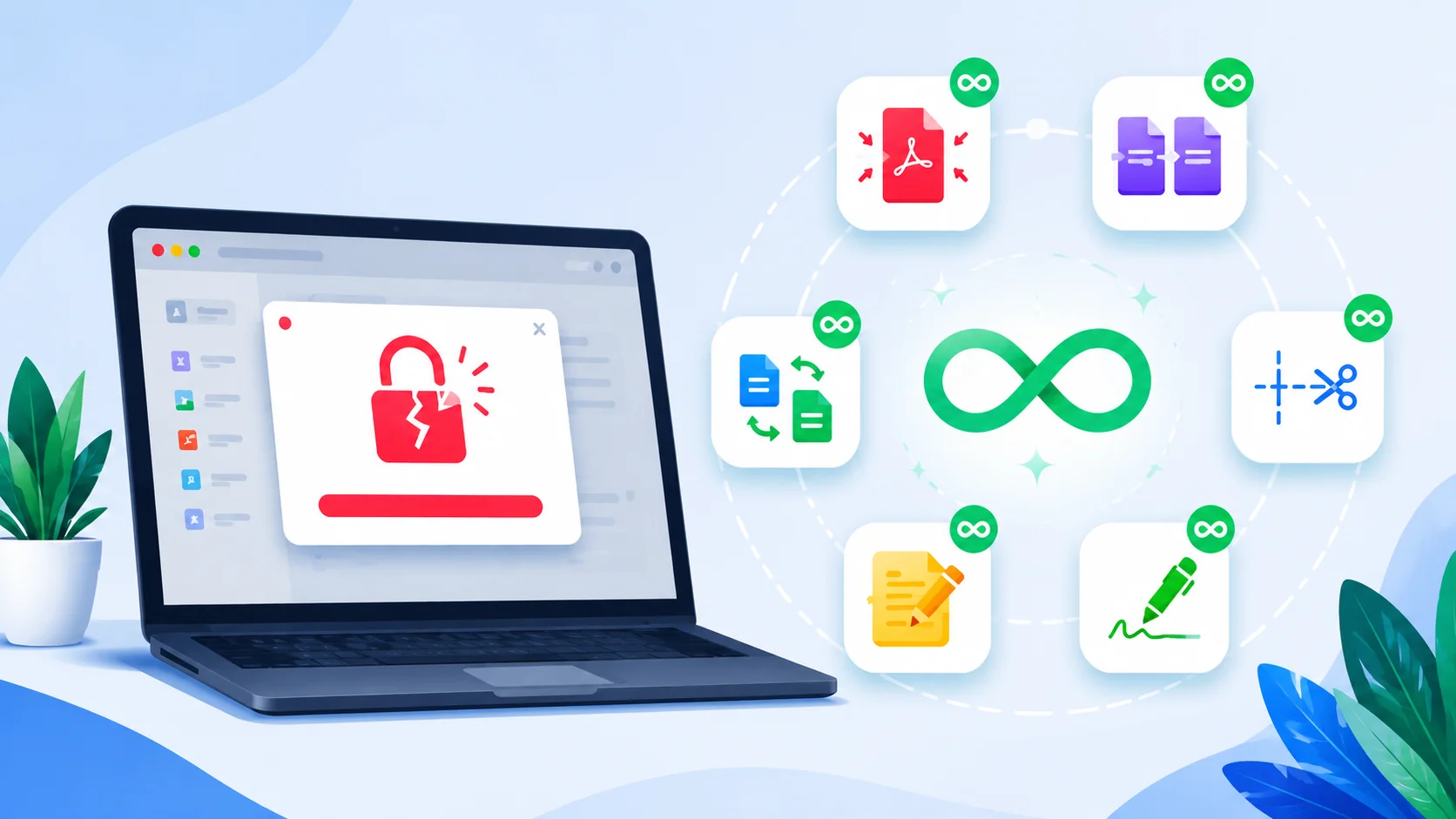
You hit "compress" on Smallpdf and finish your second task of the day, and boom – a pop-up tells you to upgrade. Sound familiar? You're not alone. Millions of people search every month for a smallpdf alternative free with no limit because Smallpdf's free plan only lets you do two tasks a day before locking you out.
Here's the good news: you don't need to pay $12/month just to merge a few PDFs. In 2026, there are completely free PDF tools with no daily caps, no watermarks, no sign-ups, and no hidden tricks.
In this guide, you'll get:
The 9 best unlimited Smallpdf alternatives you can use right now
A clear comparison of features, file size limits, and privacy
Step-by-step instructions for the top picks
Honest pros and cons (yes, even for the popular ones)
The exact tool to choose based on what you actually need
By the end, you'll know which smallpdf alternative free no-limit fits your workflow – whether you're a student, a freelancer, or running a small business.
Let's get into it.
Why People Look for a Smallpdf Alternative
Smallpdf is a great tool – clean interface, fast processing, and mobile-friendly. So why do so many users want out?
It comes down to three pain points:
The 2-task daily limit. Free users can only run two operations per day. Need to compress five files for class? Tough luck.
The 5MB file size cap on some tools. Many users find their PDFs are too big to even start.
The upgrade pressure. Every other click pushes you toward the $108/year Pro plan.
If you only edit a PDF once a month, Smallpdf works fine. But if you handle PDFs weekly — invoices, contracts, scanned receipts, and ebook chapters — those limits get old fast.
That's why a smallpdf alternative free with no limit isn't just a "nice-to-have". It's a real productivity upgrade.
What Makes a Good Smallpdf Replacement
Before listing the tools, let's set the bar. A genuine unlimited Smallpdf alternative should give you the following:
No daily task cap — use it as many times as you want
No forced sign-up or email — open the site and go
No watermark on your final output
No file size trickery — generous or no upload limits
Privacy — files deleted from servers automatically (or processed in your browser)
All the core tools — compress, merge, split, convert, edit, sign, OCR
Fast processing — under 30 seconds for normal files
HTTPS encryption during upload
Any tool missing more than two of these is just Smallpdf with a different logo. The 9 picks below pass the test.
Top 9 Smallpdf Alternatives: Free, No Limit (2026)
1. Tooldit — The All-in-One Free PDF Suite
Tooldit packs every Smallpdf feature into a single free site with zero daily caps. You can compress, merge, split, convert, rotate, unlock, and edit PDFs without creating an account or watching your usage count.
Why it stands out:
Truly unlimited tasks per day
No watermark on output
No email required
Files auto-delete after one hour
Works on phone, tablet, and desktop browsers
Over 30 PDF tools in one place
Best for: Anyone who wants Smallpdf's ease of use without the paywall.
Limitation: Maximum upload size is generous but not infinite.
2. PDF24 Tools
PDF24 is a German-made suite with both an online version and a free desktop app. The desktop version is the real winner here because everything runs locally on your computer — meaning truly unlimited use and zero privacy worries.
Why it stands out:
The offline desktop version is 100% free forever
30+ tools (compress, merge, OCR, redact, sign)
No installation needed for the web version
No watermark, no ads inside the tool
Best for: Privacy-conscious users and people processing sensitive documents.
Limitation: Desktop app is Windows-only. Mac and Linux users have to use the web version.
3. Stirling PDF (Self-Hosted)
If you're a bit technical, Stirling PDF is the most powerful smallPDF alternative free with no limit out there. It's open-source, runs on your own machine via Docker, and offers over 50 PDF features.
Why it stands out:
Completely free and open-source
Runs on your computer — total privacy
Unlimited everything, forever
More features than Smallpdf Pro
Active GitHub community
Best for: Developers, agencies, and anyone handling confidential PDFs.
Limitation: Requires Docker setup. Not beginner-friendly.
4. ILovePDF
ILovePDF gives you more breathing room than Smallpdf — you get around an hour of unlimited free use before light throttling kicks in. For most users, that's effectively unlimited.
Why it stands out:
Clean, modern interface
Mobile and desktop apps available
Solid OCR and conversion quality
Supports batch processing on free tier
Best for: Casual users who want a polished experience.
Limitation: Heavy users may eventually hit soft limits during long sessions.
5. Sejda PDF
Sejda is great for editing — it's one of the few free tools where you can actually click into a PDF and change text. The free tier gives you 3 tasks per hour and up to 200 pages or 50MB per file.
Why it stands out:
Real PDF text editing
Form filling and signing
Desktop version available (no internet needed)
Cleaner output than most free converters
Best for: Editing PDF content directly.
Limitation: Hourly limit on it.
6. PDF Candy
PDF Candy offers 40+ free tools and lets you use them with a short wait between tasks. Once you create a free account, the wait disappears for most actions.
Why it stands out:
Huge tool library
Decent OCR for scanned PDFs
Free desktop version for Windows
Best for: Users who don't mind a quick free signup for extra perks.
Limitation: Anonymous free use has a cooldown between tasks.
7. LibreOffice Draw
This one surprises people. LibreOffice — the free Microsoft Office alternative — includes Draw, which can open and edit PDFs natively.
Why it stands out:
100% free, 100% offline
Edit text, images, and layout
Export back to PDF with one click
Works on Windows, Mac, and Linux
Best for: Editing PDFs offline without any web upload.
Limitation: Not as fast as web tools. Layout sometimes shifts on complex PDFs.
8. PDFsam Basic
PDFsam (PDF Split and Merge) is a free desktop tool focused on doing a few things perfectly — splitting, merging, rotating, and extracting pages.
Why it stands out:
Open-source and lightweight
No ads, no watermark, no limits
Cross-platform (Windows, Mac, Linux)
Best for: Splitting and merging large PDF batches offline.
Limitation: Doesn't compress or convert. Pair it with another tool.
9. Your Browser's Built-in Print to PDF
Don't laugh — this works. Chrome, Edge, and Safari can all "Print to PDF" any webpage, document, or image. You can even combine files using your operating system's PDF preview tool (Mac Preview, Windows print queue).
Why it stands out:
Already on your computer
Zero uploads, total privacy
No installs, no limits
Best for: Quick PDF creation from any document or webpage.
Limitation: Limited to creation and basic merging. No advanced editing.
Quick Comparison Table
Tool | Daily Limit | Sign-Up | Watermark | Offline | Best For |
|---|---|---|---|---|---|
Tooldit | None | No | No | No | All-in-one online use |
PDF24 | None (desktop) | No | No | Yes (Win) | Privacy + offline |
Stirling PDF | None | No | No | Yes | Power users |
ILovePDF | Soft cap | Optional | No | Apps only | Polished UX |
Sejda | 3/hour (web) | No | No | Yes | PDF editing |
PDF Candy | Cooldown | Optional | No | Yes (Win) | Tool variety |
LibreOffice Draw | None | No | No | Yes | Offline editing |
PDFsam Basic | None | No | No | Yes | Split + merge |
Browser Print | None | No | No | Yes | Quick PDF creation |
How to Choose the Right Tool for You
You don't need all nine tools. Pick based on your real need:
"I just want Smallpdf without the limits" → Use Tooldit
"I work with private contracts or medical PDFs" → Use Stirling PDF or PDF24 desktop
"I need to edit text inside a PDF" → Use Sejda or LibreOffice Draw
"I'm on a Chromebook or work computer with no installs allowed" → Use Tooldit or ILovePDF in the browser
"I just need to split a 500-page PDF" → Use PDFsam Basic
"I need to make a PDF from a webpage right now" → Use your browser's Print to PDF
Step-by-Step: Using a Free Unlimited PDF Tool
Let's walk through compressing a PDF using a typical smallpdf alternative free no-limit tool. The flow is similar across most options:
Open the tool's website in your browser. No download needed.
Click "Compress PDF" (or whichever feature you need).
Drag and drop your file into the upload box — or click to browse.
Pick a compression level (low, medium, or high). High shrinks more but slightly reduces quality.
Wait 5–30 seconds while the file processes. Most tools show a progress bar.
Click "Download" to save the new PDF.
Repeat as many times as you want — there's no counter, no cooldown, no pop-up.
That's the whole experience. No login, no upsell, no waiting room.
Privacy and Safety Checklist
Before uploading any PDF, run through this quick checklist:
✅ Does the site use HTTPS (look for the padlock)?
✅ Does the tool clearly say files are deleted after processing?
✅ Are you on the official domain and not a phishing copy?
✅ For sensitive files (legal, medical, financial), are you using an offline tool instead?
✅ Have you removed personal data from the filename before uploading?
A good rule of thumb: if a PDF contains your social security number, banking info, or signed contracts, use an offline tool like PDF24, Stirling PDF, or LibreOffice Draw. Cloud tools are great for everything else.
Offline vs Online: Which Is Better?
Both have their place. Here's the honest breakdown:
Online tools win when you:
Need something fast on any device
Don't want to install software
Work across multiple computers
Have simple, non-sensitive files
Offline tools win when you:
Handle confidential data
Work without internet access
Process very large files (1GB+)
Need batch automation
Want unlimited speed (no upload time)
Most people end up using both — online for quick tasks and offline for serious work. There's no wrong answer.
Common Mistakes to Avoid
A few traps people fall into when ditching Smallpdf:
Uploading to sketchy "free PDF" sites loaded with malware ads. Stick to the names on this list.
Ignoring file size before compression. A 100MB scan compressed to 15MB might be readable but not printable — preview it first.
Forgetting to log out of shared computers after using web tools.
Re-compressing already-compressed PDFs. Each pass loses quality. Compress once, then save the original.
Confusing "free trial" with "free forever". Some tools say "free" but actually mean 7-day trial. Always check.
Featured Snippet Optimized Sections
What is the best Smallpdf alternative that is free with no limit?
The best smallpdf alternatives that are free with no limit are Tooldit for online use, PDF24 for offline desktop work, and Stirling PDF for self-hosted power users. All three offer unlimited daily tasks, no watermarks, and no sign-up requirements.
How do I get unlimited Smallpdf for free?
You can't get Smallpdf itself unlimited for free — its 2-task daily cap is hard coded. Instead, switch to a free alternative like Tooldit, PDF24, or ILovePDF, all of which offer unlimited or near-unlimited daily use without payment.
How to compress PDF without a limit — quick steps:
Open a free unlimited PDF tool in your browser.
Click the "Compress PDF" option.
Upload your file by dragging it in.
Choose your compression level.
Download the smaller file.
Repeat as many times as you need.
Smallpdf vs free alternatives — at a glance:
Smallpdf: Polished UI, but only 2 free tasks per day.
Tooldit: Same ease of use, unlimited tasks.
PDF24: Best offline option for privacy.
Stirling PDF: Best for technical users wanting full control.
Top 5 free unlimited PDF tools in 2026:
Tooldit
PDF24
Stirling PDF
ILovePDF
Sejda
FAQ Section
Is there a truly free Smallpdf alternative with no limits?
Yes, Tooldit, PDF24 Desktop, and Stirling PDF are all genuinely free with no daily task caps. They don't require a sign-up, don't add watermarks, and don't push you toward a paid plan.
Why does Smallpdf limit free users to 2 tasks per day?
It's a business choice. Smallpdf uses the daily cap to push users toward the $108/year Pro plan. The tool itself works fine — the limit is purely commercial.
Is it safe to use free online PDF tools?
Most reputable tools are safe if they use HTTPS and auto-delete files after a short period. For very sensitive documents, use an offline tool like PDF24 or LibreOffice Draw to keep everything on your computer.
Can I edit a PDF for free without Smallpdf?
Yes. Sejda lets you edit text directly in PDFs for free. LibreOffice Draw also handles full PDF editing offline. Both are real smallpdf alternative free no-limit options for editing tasks.
What's the maximum file size I can upload to free PDF tools.
It varies. Tooldit and ILovePDF handle files up to several hundred MB. Sejda caps at 50MB or 200 pages on the web. Offline tools like Stirling PDF have no upload limit at all.
Do these alternatives work on mobile?
Yes. Tooldit, ILovePDF, and PDF24 work in any mobile browser. ILovePDF and Smallpdf both have apps, but the websites work just as well on phones.
How is Tooldit different from Smallpdf?
Tooldit offers the same core PDF tools as Smallpdf but without the 2-task daily limit, no forced sign-up, and no watermark. It's designed as a free-forever alternative.
Can I use a free unlimited PDF tool for business documents?
Yes, but be smart about privacy. For routine documents (proposals, brochures, internal reports), online tools are fine. For client contracts or financial records, use offline tools to keep data off the cloud.
Will a free PDF tool add a watermark?
The tools listed in this guide do not add watermarks. Many less reputable "free" tools do — always check the output before sharing.
Is there an open-source smallPDF alternative?
Yes. Stirling PDF, PDFsam Basic, and LibreOffice Draws are all open-source and free forever. You can even inspect the code on GitHub if you want.
Can I batch process PDFs for free?
Yes. ILovePDF, Tooldit, and PDF24 all support batch uploads on their free tiers. For very large batches, the PDF24 desktop app and Stirling PDF are the fastest.
Do free PDF tools support OCR (turn scans into text)?
Some do. PDF24 and Stirling PDF include free OCR. Online tools sometimes limit OCR to paid plans, so for free unlimited OCR, the desktop options are your best bet.
What's the best free Smallpdf alternative with no limit for students?
Tooldit is the easiest pick for students — it's web-based, fast, and unlimited. For longer projects or thesis work, pair it with LibreOffice Draw for offline editing.
Do I need to install anything to use these tools?
Not necessarily. Tooldit, ILovePDF, Sejda, and PDF Candy all work right in your browser. PDF24, Stirling PDF, LibreOffice Draw, and PDFsam Basic offer optional desktop versions for offline use.
Is Smallpdf Pro worth paying for?
Only if you need their specific integrations (Dropbox, Google Drive auto-sync) and prefer their interface. For pure PDF tasks, free alternatives now match or beat Smallpdf Pro in features.
Conclusion
You don't need to put up with Smallpdf's 2-task daily wall anymore. In 2026, the best smallpdf alternative free no-limit options actually do what Smallpdf used to do for free — only better, faster, and without the constant upgrade nags.
Here's your quick recap:
For the easiest all-in-one online experience, go with Tooldit.
For privacy and offline use, pick PDF24 or LibreOffice Draw.
For full control and self-hosting, try Stirling PDF.
For PDF editing, Sejda is the cleanest free option.
Try one or two of these today. Most of them open in your browser in seconds — no sign-up, no credit card, no countdown clock. Once you experience truly unlimited PDF tools, you'll wonder why you ever put up with daily caps in the first place.
Got a favourite free PDF tool that didn't make the list? Drop it in the comments – your tip might help the next reader find their perfect smallpdf alternative free, no limit.
Read also: Compress Image for WhatsApp Free Online | Fast & Lossless