How to Compress Image to 50KB Without Losing Quality
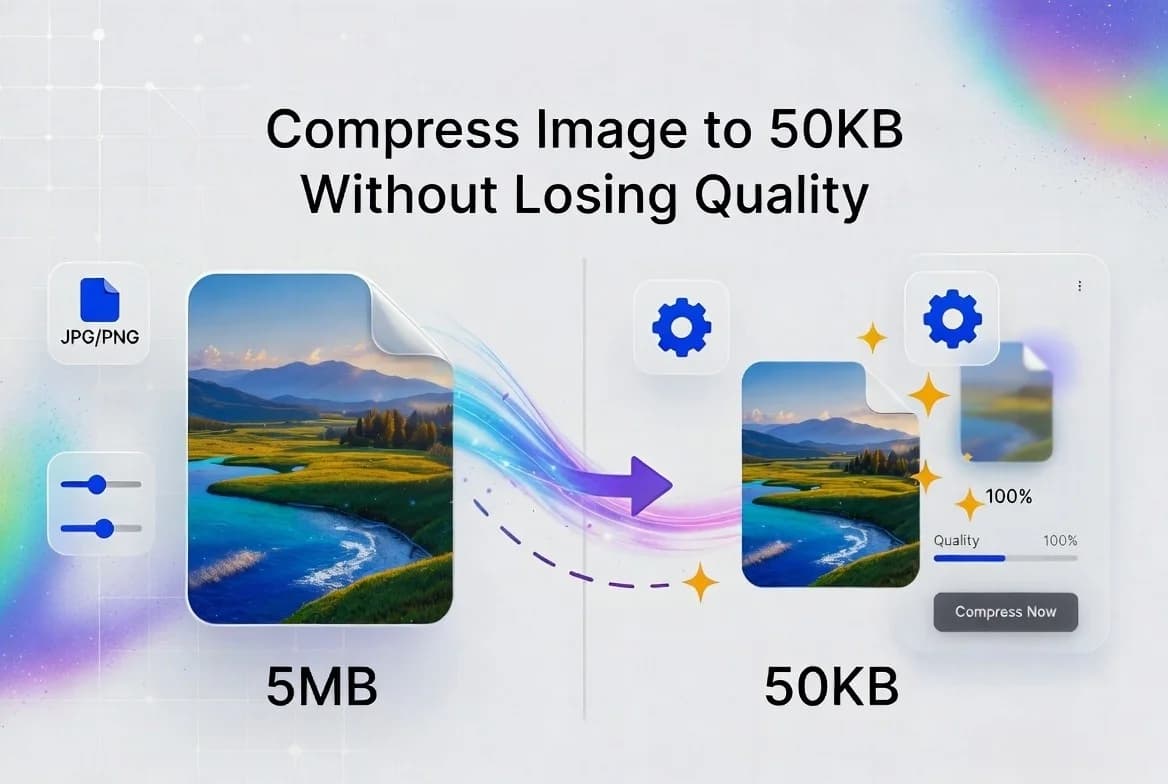
Here’s the truth: you can compress image to 50KB without losing quality. All you need to do is understand how to do it properly. No fancy tools. No tech skills. Just a few simple steps.
This guide will walk you through it. Let’s get started.
Why Compress Image to 50KB Without Losing Quality?
Lots of online forms have tight file size limits. Some go as low as 50KB. If your photo is bigger, the upload won’t go through.
Here’s when you might need a 50KB image:
Filling out government forms or visa applications
Uploading a photo for an exam registration
Submitting an ID for a banking form
Sharing photos faster on slow internet
Saving space on your phone or laptop
Speeding up your website’s load time
The hard part? Most tools shrink the file but ruin the quality. The trick is using one that does both well.
A Step-by-Step Guide to Compressing an Image to 50KB Without Losing Quality
Here’s the easiest way. No software. No signup. No payment. Just a clean photo at 50KB.
Step 1: Open an Image Compressor for Free Online
Open your browser. Head to Tooldit online image compressor. It is compatible with Firefox, Edge, Safari, and Chrome. Phone or laptop—your choice.
Step 2: Upload Your Photo
Click the upload button. You may also just drop your picture into the box. Let the file load for a few seconds.
Step 3: 50KB should be the target size
Some tools let you type the exact size you want. Pick 50KB or set it just below to play it safe. If your tool only has compression levels, choose high.
Step 4: Compress the Image
Click compress. The tool shrinks the file in seconds. Smart compression keeps the photo sharp while cutting the size.
Step 5: Preview and Download
Always preview before saving. Check the photo. Make sure it still looks clear. Then click download. Your new 50KB image is ready.
Our free image compressor makes it simple to reduce an image to 50KB without sacrificing quality in a matter of seconds.
Top Benefits of Compressing Images
Why bother shrinking your photos? Here’s what you gain:
Faster uploads. Smaller files move quicker.
Less storage used. Save room on your phone or laptop.
Easy email sharing. No more file size errors.
Better website speed. Smaller images load faster online.
Saves mobile data. Smaller uploads use less of your data plan.
Quality stays high. Smart tools keep your photo sharp.
If you upload photos often, this trick will save you tons of time.
Common Problems and Easy Fixes
It doesn't always work out the first time. These are typical problems and solutions.
Problem 1: The Photo Looks Blurry
Fix: Try medium compression first. If that doesn’t work, resize the photo to smaller dimensions before compressing.
Problem 2: The File Won’t Hit 50KB
Fix: Resize the image first. Drop the width and height to about half. Then compress. The file will shrink much faster.
Problem 3: The Tool Asks for an Email
Fix: Skip it. Use a free tool that needs no signup. Plenty of options work right in your browser.
Problem 4: The Colors Look Off
Fix: This happens with very heavy compression. Lower the level. Most of tools allow you to preview before saving.
Problem 5: The Upload Fails
Fix: Check your internet. If your photo is huge, try compressing in two rounds for better results.
Online Compressor vs Phone Apps: Which Is Better?
Both work. But each has clear pros and cons.
Online image compressor:
Free in most cases
Works on any device with a browser
No installs needed
Quick and beginner-friendly
Phone apps:
Take up storage space
May show ads
Need updates over time
Useful only for daily heavy use
For most users, online tools win every time. They’re fast, free, and easy.
Pro Tips for Better Compression
Want to keep your photos sharp every time? Try these simple tips:
Start with a clear, high-quality photo
Resize before compressing for better results
Use JPEG instead of PNG for smaller sizes
Always preview the result before saving
Save a backup of the original photo
Don’t compress the same image twice—it ruins the quality
These small steps make a big difference in your final image.
Try this image compressor.
Frequently Asked Questions
Can I really compress an image to 50KB without losing quality?
Yes. Smart online tools shrink the file size while keeping the photo clear. Use medium compression and resize the image first for the best results.
Is it safe to compress images online?
Yes, when you use a trusted tool. Reliable sites delete your files after a short time and don’t ask for personal info.
Can I compress images on my phone?
Yes. Online compressors work right in your mobile browser. You can upload, compress, and save without an app.
What’s the smallest size I can compress an image to?
It depends on the original photo. Most images can drop to 50KB or even less, but quality may take a hit at very small sizes.
Why does my photo still look big after compression?
The image dimensions might be too large. Resize your photo to a smaller width and height, then compress it again for better results.
Does compressing change the photo format?
No. A JPEG stays a JPEG. A PNG stays a PNG. Only the file size changes—not the format.
Final Thoughts
Now you know how to compress image to 50KB without losing quality in just a few clicks. No software. No signup. No stress.
Whether you’re filling out a form, uploading an ID, or just clearing space on your phone, an online compressor gets the job done in seconds—without ruining your photo.
Try our free image compressor now—fast, safe, and 100% free.
Read also: How to Merge Multiple PDF Files into One