HEIC to JPG: Convert iPhone Photos in Seconds (Free)
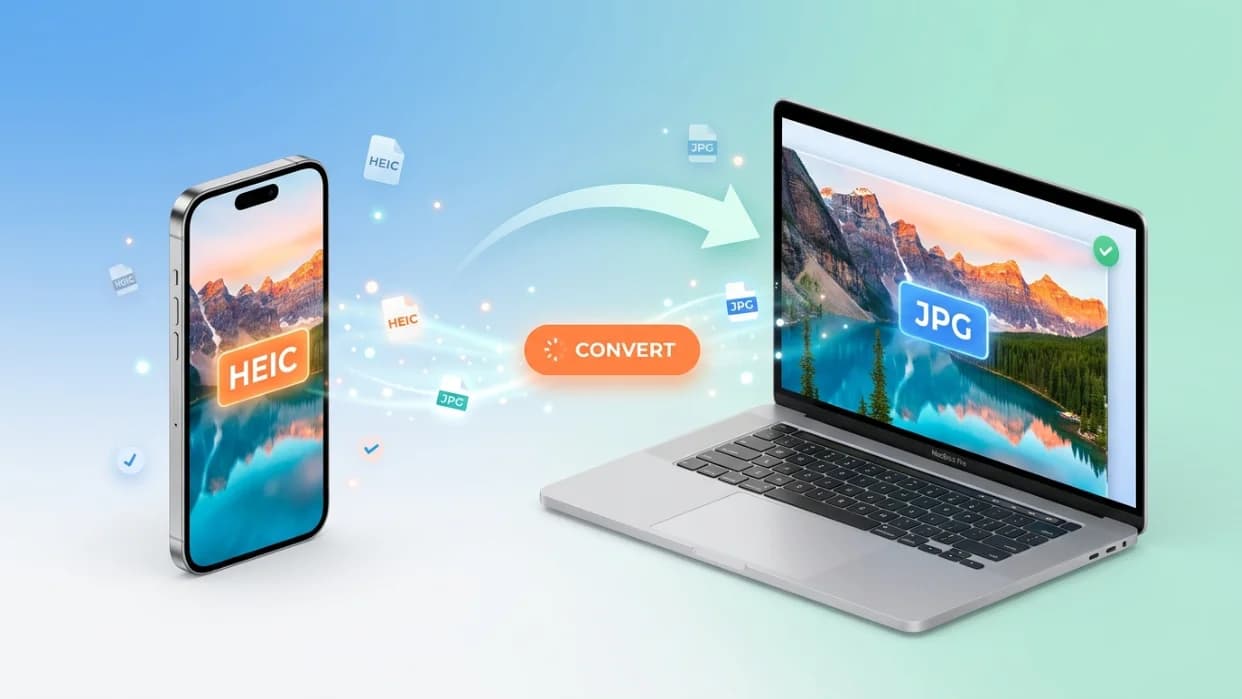
Switching a heic to jpg takes about as long as pouring a glass of water. Drop your iPhone photos into a free browser tool, hit convert, and you'll have universal JPG files ready for email, Word docs, websites, or that one cousin still rocking a 2014 laptop. No apps. No fees. Done.
Why Your iPhone Photos Keep Refusing to Cooperate
Roughly 1.4 billion iPhones are out there snapping photos in HEIC – and almost every one of those pictures becomes a headache the moment you try to send it to someone outside Apple's bubble. Maybe a client opened your portfolio file and saw a blank thumbnail. Maybe your printer at work just refuses to recognise it.
Either way, you need a clean heic to jpg swap, and you need it without downloading sketchy software. The fix sits inside your browser. Stick with us for a couple of minutes and you'll have a process you can trust for every iPhone photo from here on out.
Want the quickest path? Skip ahead to the steps below – or jump straight to Tooldit. if you're ready to convert right now.
HEIC Files Explained Without the Tech Jargon
HEIC stands for 'High Efficiency Image Container'. Apple started using it as the default photo format back on iOS 11, and the appeal was simple — it shrinks file sizes roughly in half compared to JPG, while keeping the same picture quality. Smart move for storage, painful move for sharing.
The catch? Most non-Apple software still gives HEIC a confused stare. Windows Photos may need an extra codec, older browsers won't preview it, and platforms like LinkedIn or some CMS dashboards reject the upload entirely.
JPG, meanwhile, has been the universal currency of digital photos since the 1990s. Every device, every program, and every printer reads it without complaint. That's exactly why the heic to jpg conversion is such a common search.
Where Skipping the Conversion Actually Costs You
Leaving photos in HEIC isn't just inconvenient. It can quietly damage your credibility and waste real time. Here's where it bites people:
Job applications get tossed when recruiters can't open your portfolio attachments
Insurance claims stall because adjusters use systems that don't read HEIC
WordPress and Shopify uploads fail silently, leaving broken image spots on your site
Email recipients see a generic file icon instead of your photo, and many never bother clicking
Photo printing kiosks at drugstores and supermarkets refuse the format outright
A quick JPG copy sidesteps every one of those problems.
How to Change Heic to Jpg Online (Fast Method)
Here's the cleanest path from an iPhone photo to a JPG anyone can open. The whole flow runs in your browser, so nothing installs and nothing lingers on your machine.
Step 1: Pick a Reliable Browser Converter
Open a tab and head to a free image conversion site that supports HEIC input. Look for one with HTTPS and clear privacy wording — your photos shouldn't end up sitting on someone's server forever.
Step 2: Pull Your iPhone Photos Onto the Page
Most tools accept either a drag-and-drop motion from your folder or a tap on the upload zone. If you're on a phone, you can usually pull straight from your camera roll. Multiple files at once? Totally fine.
Step 3: Choose JPG as Your Output
Some converters auto-pick the format; others let you select. Make sure JPG (or JPEG — same thing) is highlighted before you move on.
Step 4: Set Quality if You're Picky
Premium tools offer a quality slider. For social posts, 80% keeps file sizes lean. For prints or archival use, push it to 95–100% so you don't lose detail.
Step 5: Trigger the Conversion
Hit the button labelled 'Convert', Process, or Start. Smaller batches finish almost instantly. A folder of 50 photos might take half a minute on a decent connection.
Step 6: Grab Your New JPGs
You'll get individual download links or a single ZIP containing every converted image. Save them somewhere memorable — your desktop, a dated folder, wherever your filing system lives.
Step 7: Confirm Everything Opens Properly
Double-click one of the new JPGs before you trust the batch. If it pops open in your default image viewer with the right colours and details, you're golden.
If you'd rather skip the trial-and-error of testing random sites, our free HEIC to JPG converter handles batches in your browser without making you create an account or share an email.
What You Gain From an Online JPG Conversion
Beyond just opening photos elsewhere, switching the format unlocks practical wins:
Universal compatibility — JPG opens on Windows 7 machines, Chromebooks, Android phones, smart TVs, you name it
Faster online loading — Most CMS platforms compress JPG more effectively than HEIC
Easier editing — Photoshop, Canva, GIMP, and free apps all handle JPG natively
Better email delivery — some servers strip HEIC attachments as unrecognized formats
Print shop ready — every drugstore photo machine in America accepts JPG without a hiccup
Backup flexibility — older external drives and cloud services index JPG cleanly for search
Problem: The Converted JPG Looks Grainy
This usually means the quality slider was set too low. Re-run the conversion at 90% or higher. If the original HEIC was already compressed by iCloud's storage optimisation, download the full-resolution copy from iCloud first.
Problem: Colors Look Off After Conversion
Compared to regular JPG, HEIC allows a greater variety of colours. A few tools handle the colour space switch poorly. Pick a converter that mentions sRGB output specifically — that's the safe bet for screens and prints.
Problem: The Tool Won't Accept My File
Some converters cap individual file sizes at 25 MB. Live Photos and ProRAW shots can exceed that. Either trim with the iPhone's built-in editor first or use a tool with a bigger upload ceiling.
Problem: Batch Conversion Keeps Timing Out
Browser-based tools rely on your internet speed. If you're on hotel Wi-Fi, break large batches into groups of 10–15. You'll finish faster than fighting one giant upload that keeps stalling.
Online Converters vs. Desktop Apps: Quick Comparison
Feature | Online Converter | Desktop App | iPhone Settings |
Setup time | Zero — open browser | 5–10 min install | Buried in menus |
Cost | Free | Often $20–$60 | Free |
Batch support | Yes, usually unlimited | Yes | One at a time |
Works on Chromebook | Yes | Rarely | No |
Privacy risk | Low (pick HTTPS sites) | None | None |
Insider Tricks for Cleaner Conversions
Rename files before uploading — converters preserve filenames, so cleaning them up first saves sorting later
Convert in small batches when sharing client work; it's easier to spot a corrupted file in 10 photos than in 200
Keep originals intact — convert copies; never overwrite the HEIC source until you're sure the JPGs work everywhere you need.
Watch the EXIF data — some converters strip GPS and timestamp info. Pick one that preserves metadata if location matters
For social media specifically, 1080px width at 85% quality hits the sweet spot for Instagram and Facebook
If you convert often, bookmark the tool — you'll save yourself the search every single time
Test print one converted photo before committing a whole album to a photo book; printers reveal quality issues screens don't
Why tooldit.com Stands Out for Heic to Jpg Jobs
Plenty of converters exist online, but a few specific things put tooldit.com ahead for everyday users:
Files process directly in your browser, so your photos never sit on a remote server waiting to be deleted
No account creation, no email confirmation, no free-trial-then-pay surprise — the tool stays genuinely free
Batch uploads handle 30+ photos at once without the page freezing or crashing on slower laptops
The interface stays clean; there are no banner ads jumping around while you're trying to click Convert
Frequently Asked Questions
Does converting HEIC to JPG lower the photo quality?
There's a small quality drop because JPG uses lossy compression, but at 90% quality or higher, your eye won't catch it on a phone or laptop screen. For printing larger than 8x10, set quality to 100% to keep every pixel sharp.
Can I convert HEIC photos directly on my iPhone without a computer?
Yes. Open Settings, tap Camera, then Formats, and pick Most Compatible — new shots will save as JPG automatically. For existing HEIC files, use a browser converter on the iPhone itself; Safari handles uploads from your camera roll just fine.
Is it safe to use free online HEIC converters with private images?
Trustworthy ones are safe. Look for HTTPS in the URL, a clear privacy policy, and ideally browser-based processing that never uploads files to external servers. Skip any site that demands an email signup just to convert a photo.
Can I convert more than one HEIC file at once?
It depends on the tool. Most quality converters handle 20 to 50 files per batch comfortably. Tools running entirely in your browser are limited only by your computer's memory, which usually means 100+ photos in one go on modern laptops.
Will the date and location of a converted JPG remain the same as those of the original HEIC?
That depends on whether the converter preserves EXIF metadata. Quality tools keep camera info, timestamps, and GPS coordinates intact. Cheaper converters sometimes strip this data, so check the output once before assuming everything carried over.
What's the difference between HEIC and HEIF, and does it matter for conversion?
While HEIC is Apple's particular implementation that uses HEIF for still photos, HEIF is the more general format standard. For day-to-day conversion, treat them as the same thing — any tool that handles HEIC will accept HEIF files without issue.
Wrapping Up Your iPhone Photo Compatibility Problem
Converting heic to jpg shouldn't require downloads, signups, or a learning curve. A solid browser tool turns the whole job into a 30-second errand, even for hundreds of photos at once. Once you find one that doesn't fight you, the format problem disappears for good.
Ready to try it for yourself? Head over to tooldit.com, drop in your iPhone photos, and watch them transform into universally readable JPG files. Your future self — and everyone you send photos to — will thank you.
Read also: Free Word Counter Online Free No Signup — Try It Now