How to Convert SVG to PNG in Seconds (Free, No Software)
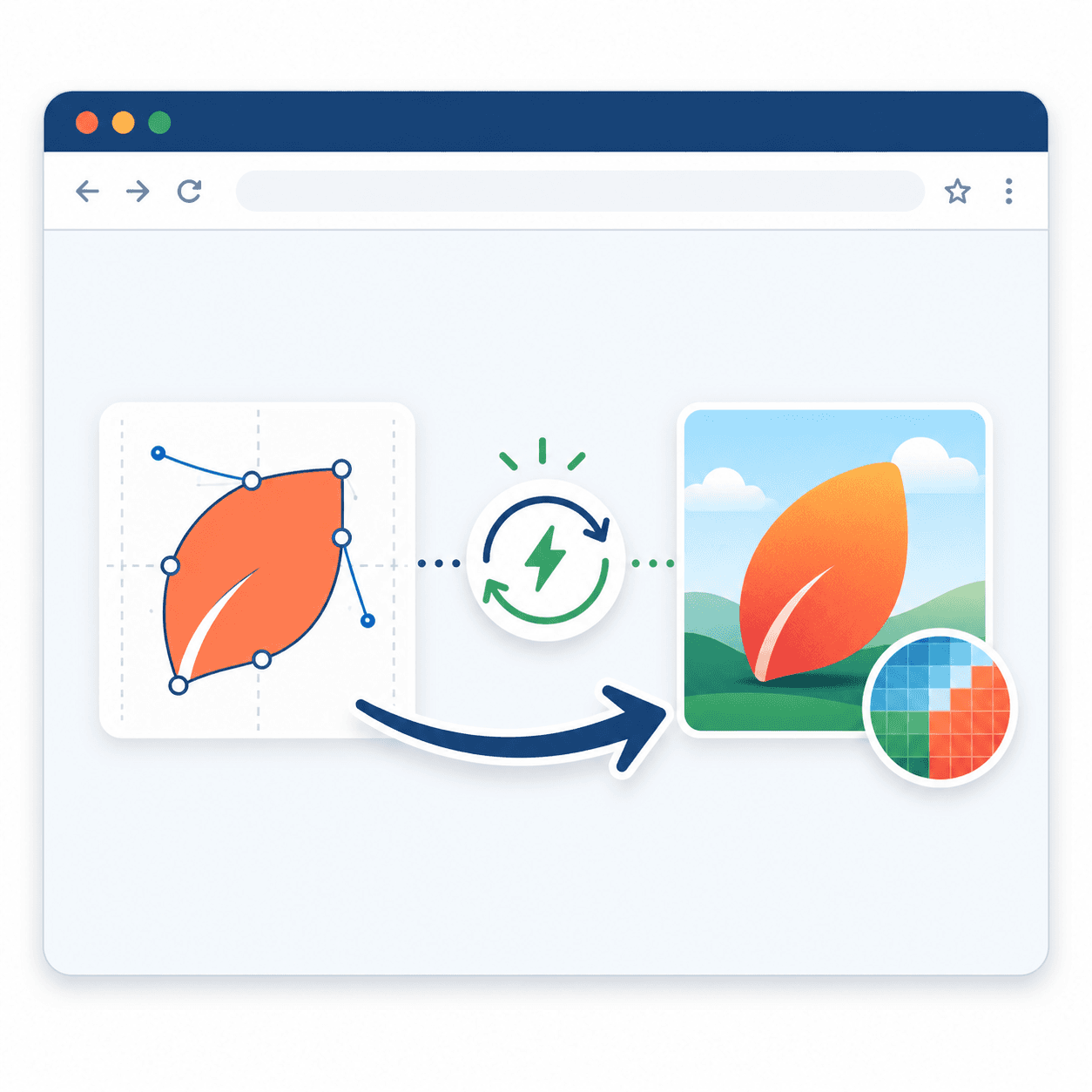
Quick Answer: To convert SVG to PNG, open a free online converter, upload your SVG file, set the size you want, click convert, and download the PNG. Your transparent background stays intact. The whole thing takes about 10 seconds, with no software and no signup needed.
Introduction
You downloaded a cool logo or icon. It’s an SVG file. But when you try to post it on Instagram or drop it into an email, it just won’t work. Sound familiar?
Here’s the thing: SVG files are great for design, but lots of apps and sites can’t read them. That’s why converting SVG to PNG comes in handy. PNG works pretty much everywhere—social media, email, slides, you name it.
In this guide, you’ll learn the fastest way to make the switch. No design skills. No paid apps. Just a few clicks and you’re done. Want to try it right now? You can convert your first file in seconds and see how easy it is.
Let’s get into it.
What Does Converting SVG to PNG Actually mean?
Let me explain it simply. SVG and PNG are two different kinds of image files. They store pictures in totally different ways.
SVG stands for Scalable Vector Graphics. Instead of pixels, it uses math—points, lines, and shapes. That’s why you can blow it up to any size, and it never gets blurry. It’s a web standard built by the W3C.
PNG stands for Portable Network Graphics. It’s made of pixels, like a photo. It has a fixed size, but it works everywhere and keeps see-through backgrounds.
So when you convert SVG to PNG, the tool “flattens” your vector into a pixel image at whatever size you pick. Simple as that.
Why You Might Need to Convert SVG to PNG
You might wonder why bother switching at all. Honestly, there are some real reasons. Here’s why people do it every day:
Social media support. Instagram, Facebook, and X want PNG or JPG—not SVG.
Email-friendly. Most email apps can’t show SVG files properly.
Works in any app. Slides, docs, and image viewers all open PNG with no fuss.
Keeps transparency. PNG holds onto your see-through background, perfect for logos.
Print-ready. A fixed-size PNG prints cleanly without surprises.
Bottom line? If you want your image to just work, PNG is the safer bet.
How to Convert SVG to PNG in 6 Easy Steps
Ready to give it a try? Here’s the simplest way to get it done.
Step 1: Open a Free Online Converter
Open your browser. Head to a trusted SVG to PNG converter. Look for one that’s free and needs no signup.
Step 2: Upload Your SVG File
Click the upload button. Or just drag and drop your SVG into the box. Many tools let you add several files at once.
Step 3: Set Your Size (Optional)
Want a specific size? Type the width and height in pixels. Leave it blank, and the tool uses the SVG’s default size. Bigger numbers mean a sharper, larger PNG.
Step 4: Click Convert
Hit the convert button. The tool turns your vector into a pixel image in just a few seconds.
Step 5: Preview the PNG
Take a quick look. Make sure your image looks sharp and the transparent areas came through correctly.
Step 6: Download Your PNG
Click download. The new PNG saves to your phone or computer. That’s it—you’re done.
Want a tool that makes this dead simple? You can use our free SVG to PNG converter that keeps your transparency and lets you pick any size—no signup, no fuss.
Top Benefits of Using an Online SVG to PNG Tool
Why pick an online tool over heavy design software? Here’s what you get:
100% free. No trials, no hidden fees, no watermarks.
Super fast. Most files convert in under 10 seconds.
Works on any device. Phone, tablet, Windows, Mac—your call.
No installs. Skip the downloads. Just open the site and go.
Pick your size. Make a tiny icon or a giant banner from the same file.
Privacy-friendly. Many browser tools process files right on your device, so nothing gets uploaded.
For most folks, online tools are the smarter pick. Faster, cheaper, and just easier.
Common Problems and How to Fix Them
Sometimes things don’t go right the first time. Here’s how to handle the most common issues.
Problem 1: The PNG Looks Blurry
Fix: You probably picked a size that’s too small. Set a bigger width and height before converting. Remember, SVG can scale up forever, so go big for a crisp result.
Problem 2: The Background Turned White
Fix: Some tools fill the background instead of keeping it clear. Pick a converter that supports transparent PNG output, and your see-through background will stay.
Problem 3: The Colors Look Different
Fix: Some SVGs use a dynamic colour setting. If the colours shift, set the colour in the tool before converting, or open the file in an editor to lock the colours first.
Problem 4: The File Won’t Upload
Fix: Make sure your file really is an SVG and not just renamed. Check your internet too. If it still fails, try a different browser or tool.
Problem 5: The Text Moved or Changed Font
Fix: Good news—most converters rasterise text, so it locks in place and looks the same even if the viewer doesn’t have the font. If it still looks off, convert the text to outlines in your editor first.
SVG vs PNG: What’s the Real Difference?
Curious how these two formats compare? Here’s a clean side-by-side look:
Feature | SVG | PNG |
Image Type | Vector (math-based) | Raster (pixel-based) |
Scales Without Blur | Yes, to any size | No, fixed-size |
Transparency | Yes | Yes |
Social Media Support | Poor | Excellent |
Email Support | Limited | Universal |
File Size | Small for simple art | Bigger for detailed art |
Best For | Logos, icons, web art | Sharing, posting, printing |
Editing | Easy to resize/recolor | Harder to edit cleanly |
The takeaway? SVG is best for designing and storing. PNG is best for sharing and posting. That’s why converting SVG to PNG makes so much sense before you send your image anywhere.
Pro Tips for the Best SVG to PNG Results
Want sharp, clean PNGs every time? Try these insider tips:
Always keep your original SVG—you can re-convert at any size later
For sharp results, convert at 2x the size you actually need
Use a tool that keeps transparency if your image has a clear background
Set exact pixel sizes for icons (like 512x512) to match app requirements
Always preview the PNG before sending or posting it
Pick a browser-based tool for privacy if your file is sensitive
Rename the PNG clearly so it doesn’t get mixed up with the SVG
Why Tooldit.com Is the Best Free SVG to PNG Converter
Plenty of converters exist online. So why pick Tooldit.com? Honest answer:
Truly free. No watermarks, no paywalls, no “upgrade to continue” walls.
No signup, no email. Just open the site and convert.
Beginner-friendly. Clean layout that anyone can use on the first try.
Trusted by US users. Students, freelancers, and small business owners use it daily.
If you want a tool that just works without the runaround, Tooldit.com is the one to bookmark.
Frequently Asked Questions
Will I lose quality when I convert SVG to PNG?
Not if you pick the right size. SVG can scale to any size, so set a large enough width and height before converting. The PNG will look sharp. Just remember PNG has a fixed size, so going bigger later means converting from the SVG again.
Does the PNG keep my transparent background?
Yes, as long as your tool supports it. PNG handles transparency through alpha channels, so any see-through areas in your SVG carry over. This makes PNG perfect for logos and icons that need a clear background on websites or designs.
Can I set a custom size when converting SVG to PNG?
Absolutely. Most converters let you type the exact width and height in pixels. If you only set one, the tool keeps the aspect ratio for the other. This is handy for making app icons, banners, or thumbnails at exact sizes.
Is it safe to convert SVG files online?
Yes, when you use a trusted tool. The safest ones process your file right in your browser, so it never gets uploaded to a server. Others delete files within an hour or so. Either way, stick to well-known tools with clear privacy policies.
Can I convert SVG to PNG on my phone?
Yes. Online converters work in any mobile browser. Just open the site, upload your SVG from your phone, set the size, and download the PNG. No app needed. It works the same on iPhone and Android.
Why can’t I just upload my SVG to social media directly?
Most social platforms only accept raster images like PNG and JPG, not vector files like SVG. That’s because SVG can behave unpredictably across browsers and apps. Converting to PNG gives you a fixed image that posts cleanly every time.
Final Thoughts
Converting SVG to PNG is one of those small skills that saves you a tonne of headaches. SVG is amazing for design, but PNG is the format that actually works everywhere—social media, email, slides, and print.
The best part? You can do it for free, in about 10 seconds, right from your browser. No software. No signup. And your transparent background stays put.
Ready to try it yourself? Head over to Tooldit.com, upload your SVG, and grab your shiny new PNG in seconds. Your image will finally work wherever you need it.
Read also: The Free JSON Formatter That Makes Messy Code Easy to Read