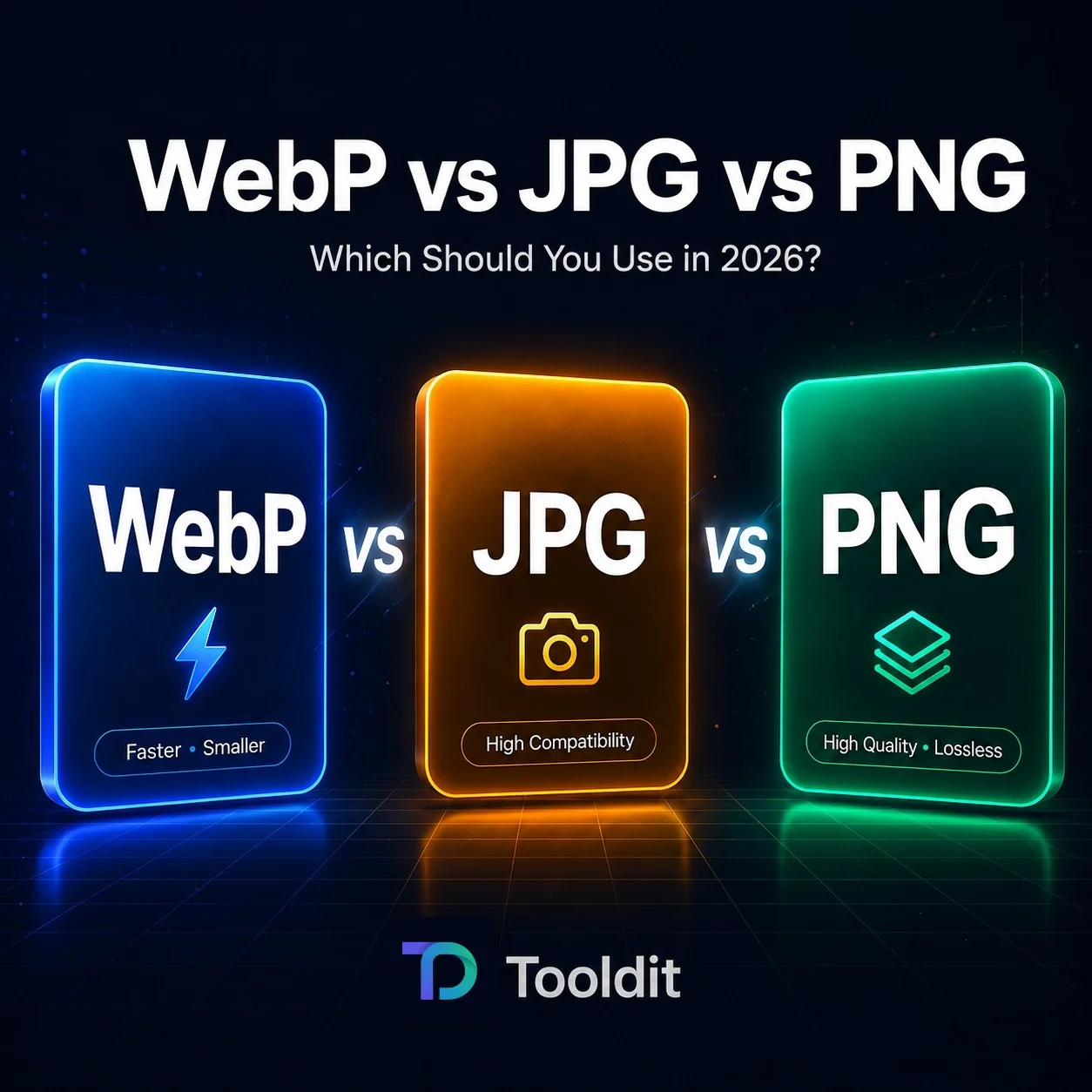
WebP vs JPG vs PNG: Which Image Format Wins in 2026?

In the WebP vs JPG vs PNG debate, WebP is superior for speed and lower downloads; JPG is superior for exchanging photographs and emails, and PNG is the preferred format for logos and images with transparent backgrounds. WebP should be used for the majority of websites, with JPG and PNG serving as backups for outdated browsers.
Introduction
You’re uploading photos to your website. Or saving them to send a friend. Then you see those weird format names—WebP, JPG, PNG—and you freeze. Which one do you pick? Sound familiar?
The truth is that many individuals get confused by the WebP vs JPG vs PNG discussion. However, once you understand what each person wins at, the solution is actually very simple.
In this guide, you’ll learn the real difference between these three formats. No tech jargon. Just clear advice you can actually use. Want a quick way to switch between formats? You can test each one for yourself by using a free online converter.
Let’s break it down.
What Are WebP, JPG, and PNG Anyway?
Each of these is an image file format. Consider them like various photo containers; some can hold more, while others maintain sharper quality.
JPG (or JPEG)
JPG has been around since 1992. It’s the format most people know. Because it reduces file size quickly, it works well for photographs. The trade-off? Every time you save something, a little quality is lost.
PNG
PNG came out in 1996. Logos and icons adore it since it enables transparent backgrounds and maintains every pixel sharp—no quality loss at all. Icons and logos love it because it enables transparent backgrounds. The downside? Bigger file size.
WebP
WebP is the new kid. It was created by Google in 2010 to speed up the loading of webpages. It offers both lossless and lossy choices, along with transparency, and keeps files much smaller than JPG or PNG. It keeps files far smaller than JPG or PNG and offers both lossless and lossy choices, along with transparency.
Why Picking the Right Format Actually Matters
You may be wondering if it actually has any effect. Sincerely? Yes. Here’s why:
Faster websites. Visitors are satisfied since smaller image files load more quickly.
Better Google rankings. Google rewards fast sites with higher search positions.
Saved storage space. Smaller files take up less space on your laptop, server, and phone.
Cleaner-looking work. Cleaner logos and better photos are the results of proper formatting.
Easier sharing. Some formats open everywhere; others only work in certain apps.
As a result, choosing the wrong format is more than just a minor detail; it can slow down your website, negatively impact your SEO, and degrade the appearance of your photos. It can degrade your photographs, slow down your website, and harm your SEO.
How to Pick Between WebP, JPG, and PNG in 5 Easy Steps
Not sure which format fits your needs? Follow these steps.
Step 1: Ask What the Image Is
Is it a photo? A logo? An icon? A screenshot? The image kind immediately directs you to the appropriate format.
Step 2: Check If You Need Transparency
Does the image need a see-through background? If yes, PNG or WebP wins. JPG can’t do transparency at all.
Step 3: Decide Where It’s Going
Web use? WebP is the smart pick. Email or print? Stick with JPG. Need to keep every pixel sharp? PNG’s your friend.
Step 4: Think About File Size
Small file size matters for websites and email. WebP files are typically much smaller than PNG and 25–35% less than JPG.
Step 5: Convert If Needed
Already have an image in the wrong format? Switching is easy. In just a few seconds, you may switch between WebP, JPG, and PNG using a free online converter.
Tooldit.com makes this part painless. You can try a free picture format converter on tooldit.com that can convert WebP, JPG, and PNG with just one click—no hassle and no login.
The Real Benefits of Each Format
Every format has unique value to provide. Here’s what you get with each one:
Why pick JPG?
Works with all devices developed in the previous 30 years.
Ideal for colourful, highly detailed photographs
Easy to email and share without hiccups
Smaller than PNG for the same photo
Why pick PNG?
Keeps every pixel sharp—no quality loss
Allows for transparent logo backgrounds
Great for screenshots and graphics with text
Looks crisp even when you zoom in
Why pick WebP?
Files are much smaller than PNG and JPG
Loads pages faster—a big win for SEO
Handles transparency like PNG
Supports animations, like GIFs but smaller
Common Mistakes People Make With Image Formats
Sound familiar? These mistakes trip up tonnes of people. Here’s how to avoid them.
Mistake 1: Using PNG for Every Photo
Fix: PNG files are huge. Use them only for logos, icons, or anything that needs a transparent background. For regular photos, stick with JPG or WebP.
Mistake 2: Saving Logos as JPG
Fix: JPG can’t handle transparency. Your logo will end up with an ugly white box around it. Save it instead as WebP or PNG.
Mistake 3: Ignoring WebP for Websites
Fix: If you run a website or blog, WebP can cut your image sizes nearly in half. This improves your Google ranking and speeds up your website.
Mistake 4: Re-Saving JPGs Over and Over
Fix: A JPG loses some quality each time it is saved. Keep an original copy and only export new JPGs when needed.
Mistake 5: Using the Wrong Format for Printing
Fix: Print shops usually want JPG or PNG. WebP often won’t print right. Convert before you send files off to be printed.
WebP vs JPG vs PNG: Side-by-Side Comparison
Here’s the full breakdown in one easy chart:
Feature | WebP | JPG | PNG |
File Size | Smallest | Medium | Largest |
Quality | High | Good | Excellent |
Transparency | Yes | No | Yes |
Browser Support | All modern | Universal | Universal |
Best For | Websites | Photos | Logos & graphics |
Compression | Both lossy and lossless | Lossy | Lossless |
Print-Friendly | Limited | Yes | Yes |
Animation | Yes | No | No |
As you can see, each format has its sweet spot. Choose the one that most closely matches your objectives.
Pro Tips for Using Image Formats the Right Way
Here are some real-world tips that’ll save you time and headaches:
Use WebP for all images on your website to speed up load times
Save photos as JPG when emailing or printing
Pick PNG for screenshots, logos, and design files
Keep an original copy in PNG or a high-quality format before exporting
Check how your photos appear on laptops, tablets, and phones.
Compress before uploading—smaller files mean happier visitors
Don’t convert PNG to JPG and back to PNG—you’ll lose quality each time
Why Tooldit.com Is the Best Free Image Converter
Look, there are dozens of image converters online. So why should you pick Tooldit.com?
100% free. No paywalls, no premium upgrades, no “unlock more” nonsense.
No signup needed. Simply open the website and begin converting. No email, ever.
Works on any device. Phone, tablet, or laptop—your call.
Trusted by US users. Thousands of folks use it daily for quick image jobs.
If you want a no-fuss converter that just works, Tooldit.com checks every box.
Frequently Asked Questions
Is WebP really better than JPG for SEO?
In fact, WebP files are 25–35% smaller than JPGs of similar quality. Smaller images mean faster page loads, and Google rewards fast sites with higher rankings. If you run a website or blog, switching to WebP can give your SEO a real boost.
Can I use WebP for printing photos?
Not really. Most print shops, photo labs, and home printers don’t support WebP yet. Before printing an image, save it as a JPG or PNG. WebP is built for the web, not for paper.
Why does my PNG file look better than my JPG?
PNG uses lossless compression, which means no details get thrown away. JPG uses lossy compression to shrink the file, which can blur edges and lose sharpness. For graphics with sharp lines or text, PNG always looks cleaner than JPG.
Does Instagram or Facebook support WebP uploads?
Most social media platforms still prefer JPG for photo uploads. Some accept WebP, but they often convert it back to JPG anyway. To play it safe, save your social media photos as JPGs before uploading.
Will old browsers show my WebP images?
WebP is supported by all current browsers, including Chrome, Safari, Firefox, and Edge. The only ones that don’t are very old versions of Internet Explorer. As of 2026, over 97% of internet users can see WebP images with no problem.
How can I convert PNG files to WebP files without compromising quality?
Use a lossless WebP conversion option. Most free online converters let you choose between lossy and lossless settings. Pick lossless, upload your PNG, and the new WebP file will keep every pixel intact while being much smaller.
Final Thoughts
So, who wins the WebP vs JPG vs PNG showdown? To be honest, it depends on what you're doing. WebP is the smart pick for websites. JPG is the safe pick for photos and email. PNG is the go-to for logos and sharp graphics.
The best part? You don’t have to stick with one. Convert between them whenever you need.
Ready to give it a try? Head over to Tooldit.com, drop in your image, and grab the format you need in seconds—free, fast, and no signup. Your photos will load faster, look sharper, and work everywhere they need to.
Read also: Remove Background from Images for Free in Seconds