Why Are My iPhone Photos HEIC Instead of JPG?
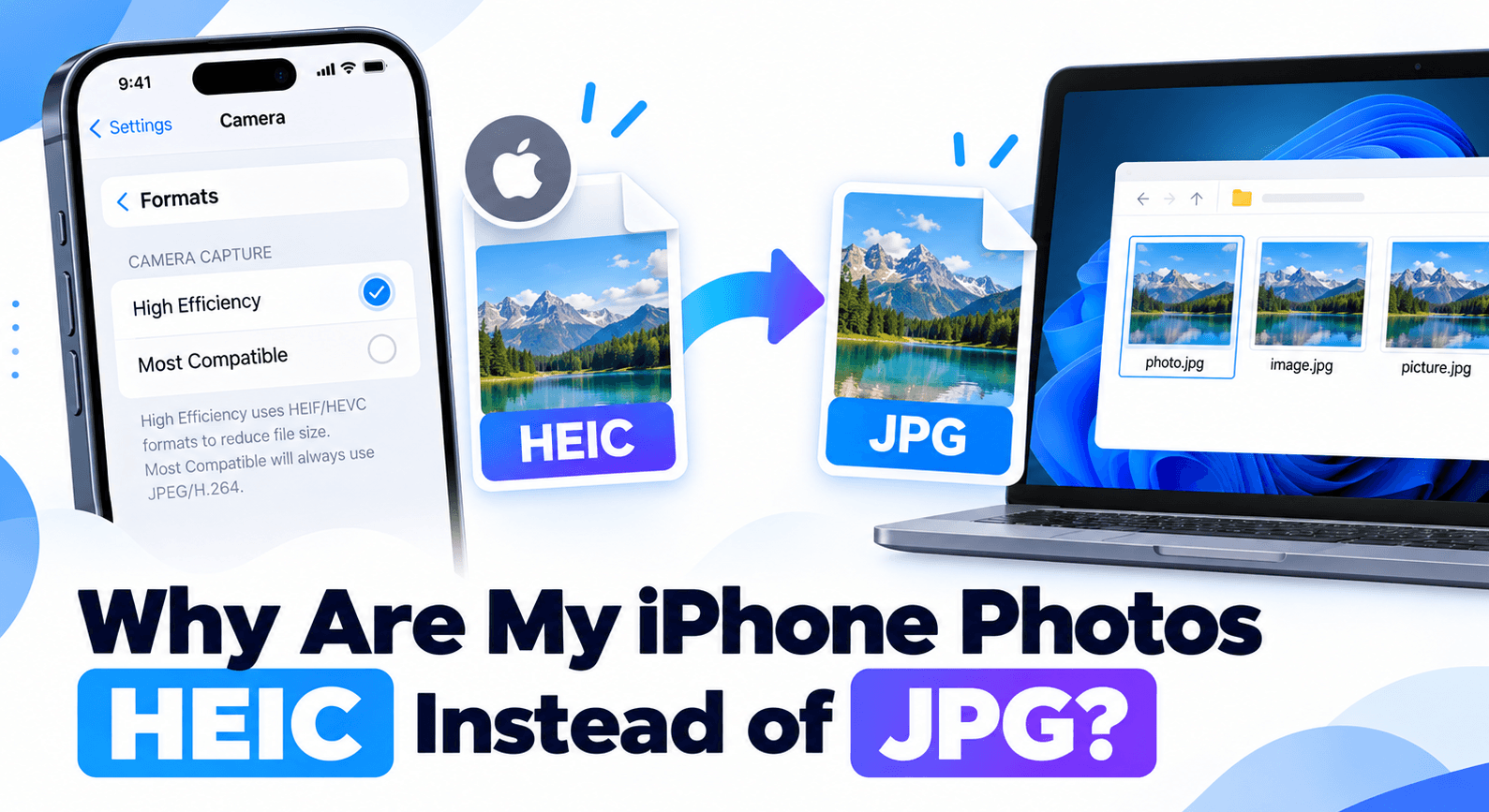
If you have moved photos from your iPhone to a computer, you may have noticed files ending in .heic instead of .jpg.
Your iPhone photos are HEIC because the camera is set to High Efficiency. This format helps save storage space while keeping good image quality.
HEIC works well on Apple devices, but some websites and apps may not accept it. If you need JPG files, you can change your camera setting for future photos. You can also convert photos you already have.
Here is what you need to know about HEIC, JPG, and your iPhone’s camera settings.
Why Does My iPhone Save Photos as HEIC Instead of JPG?
Your iPhone may save photos as HEIC when High Efficiency is selected in Camera settings.
Apple uses this format because it offers efficient compression. In simple terms, your photos can take up less storage space than similar JPG files.
That can be useful if you take a lot of pictures or keep them in iCloud Photos.
HEIC is a normal image format. Seeing it does not mean there is a problem with your iPhone.
However, if an app or website asks for JPG, you may need to convert the photo first.
What Is an HEIC File on an iPhone?
An HEIC file is a type of image file used by iPhones and other compatible devices.
HEIC is associated with HEIF, which stands for High Efficiency Image File Format. You may see the file ending .heic when you view an iPhone photo on a computer.
Apple introduced support for HEIF photos with iOS 11. The format is designed to store images efficiently.
Think of HEIC and JPG as two ways to save a picture. Both can hold a photo, but they differ in compatibility and file size.
Why Are Some iPhone Photos HEIC and Others JPG?
Your iPhone photo library can contain both HEIC and JPG files. That is normal.
Some possible reasons include:
You changed your camera format at some point.
A photo was taken on another device.
You saved an image from a website or app.
A photo was converted when it was shared or exported.
A third-party camera app saved a different format.
For example, older photos may be JPG, while newer ones are HEIC. The reverse can happen if you recently switched to Most Compatible.
Some special camera modes may also use different formats. For example, supported iPhones can capture Apple ProRAW images when that option is enabled.
To check a photo’s format, open it in Photos and tap the Info button, or swipe up. The details may show its file format.
Why Did My iPhone Suddenly Start Saving Photos as HEIC?
A likely reason is that High Efficiency is now selected in your camera settings.
You may have changed the setting, started using a different iPhone, or noticed the format only after moving photos to a computer.
An update, restore, or change in workflow could also be involved, but the exact reason depends on your device. Check the setting before assuming what changed.
Go to:
Settings → Camera → Formats
If High Efficiency is selected, that explains why new standard photos may be saved as HEIC.
If you prefer JPG for future photos, choose Most Compatible.
How Do I Stop My iPhone From Taking HEIC Photos?
To take new standard photos as JPG, change your iPhone camera format to Most Compatible.
The change affects future photos. It does not automatically convert photos already in your library.
The setting may look slightly different depending on your iPhone and iOS version.
How Do I Change My iPhone Camera From HEIC to JPG?
Follow these steps:
Open Settings on your iPhone.
Scroll down and tap Camera.
Tap Formats.
Select Most Compatible.
Your iPhone will use the more compatible JPEG format for new standard photos. Apple provides the same setting in its guide to HEIF and HEVC media.
To check the change, take a new photo and view its details in the Photos app.
Note: Some special camera features and modes may use other formats. Check the settings for those features if your photo is not saved as JPG.
What Does Most Compatible Mean on an iPhone?
Most Compatible tells the camera to use formats that are more widely supported.
For standard photos, that generally means JPEG, also called JPG. For video, Apple lists H.264 as the compatible format.
This can make sharing and uploading easier. The trade-off is that files may use more storage than High Efficiency files.
Most Compatible does not lower every photo to the same quality or size. The result depends on the image and camera settings.
Why Are My iPhone Photos Still HEIC After Changing to Most Compatible?
The most common reason is that those photos were taken before you changed the setting.
For example, if you switch to Most Compatible today, yesterday’s HEIC photos remain HEIC. New standard camera photos should use the updated setting.
Check these points:
Confirm that Most Compatible is selected.
Take a new photo after changing the setting.
Check the new photo’s details in the Photos app.
Check whether you used a special camera mode or another camera app.
If only your older pictures are HEIC, the setting is likely working as expected. Convert the older files when you need JPG copies.
If a new standard photo still shows HEIC, review your camera options and iOS version. Menu choices and supported features can vary by model.
Why Are My iPhone Photos HEIC When I Transfer Them to a PC?
Your photos may arrive as HEIC because the transfer method kept the original files.
This can happen when you download originals from a cloud service or copy files without converting them.
Some transfer and sharing methods may create a JPG copy. Others preserve the HEIC file. The result depends on the service and the options used.
For example, Microsoft says OneDrive for iOS can upload HEIF photos in their original format.
If the photos are already on your PC, you have two choices:
Open the HEIC files with compatible software or extensions.
Convert copies to JPG for apps and websites that require it.
Converting is helpful when you need to send the photo to someone whose device cannot open HEIC.
How Do I Convert Existing HEIC Photos to JPG?
You can create JPG copies with an image converter or an app that supports HEIC export.
For a browser-based option, try the Tooldit HEIC Converter.
Convert an HEIC Photo With Tooldit
Open the Tooldit HEIC Converter.
Select the HEIC photo from your device.
Choose JPG as the output format.
Adjust the quality setting if needed.
Click Convert and download the file.
Open the JPG to check the result.
Keep the original HEIC until you are happy with the new copy.
A JPG may differ in file size or color. Conversion can also affect metadata, such as camera details or location information.
If your photo is a Live Photo, a JPG is a still image. Keep the original media if you need the motion component.
Convert on a Mac
If you have a Mac, Apple says you can open an HEIF image in Photos or Preview and export it as JPEG.
For detailed instructions, see Apple’s HEIF conversion guidance.
Convert on a Windows PC
If Windows can open the HEIC file, you may be able to save a JPEG copy in a compatible image app.
If it cannot open the file, check the section below on Windows support. You can also use a compatible HEIC-to-JPG converter.
Changing the filename from .heic to .jpg is not enough. The image must be converted to the JPG format.
Is HEIC Better Than JPG for iPhone Photos?
It depends on how you plan to use the photo.
HEIC is useful for saving space. It offers efficient compression and works well within Apple’s ecosystem.
JPG is useful for compatibility. Many websites, apps, and devices accept it.
Feature | HEIC | JPG |
|---|---|---|
Storage | Often uses less space | May use more space |
Apple device support | Supported on compatible Apple devices | Widely supported |
Website uploads | Some sites may reject it | Accepted by many sites |
Sharing | May need conversion for some recipients | Convenient for broad sharing |
Best use | Keeping efficient originals | Sending or uploading compatible copies |
You do not have to choose one format for every situation.
You can keep HEIC for your photo library and create a JPG copy when a website or recipient needs one.
Frequently Asked Questions
Does HEIC Take Up Less Space Than JPG?
Often, yes. HEIC uses efficient compression and can produce smaller files at comparable visual quality.
The difference is not the same for every photo. Image content, resolution, and export settings all affect file size.
Compare actual files if storage is important to you.
Can I Open HEIC Photos on Windows?
Yes, but support depends on your Windows setup and the app you use.
Some PCs may need HEIF Image Extensions or HEVC Video Extensions. Availability and pricing can vary.
Microsoft explains the extension options in its HEIF and HEVC support guide.
If you only need a JPG copy, you can also use a compatible converter.
Will Changing to JPG Affect My Existing Photos?
No. Choosing Most Compatible changes how future standard photos are captured.
Your existing HEIC photos stay in their current format unless you convert or export them.
Keep the originals if you want to preserve them for later use.
Can I Share iPhone Photos as JPG Without Changing Camera Settings?
Yes. Depending on the destination and your iOS version, the Photos app may offer sharing format options.
Open a photo, tap Share, then look for Options. If available, choose Most Compatible before sharing.
Apple says this option may convert files to a more compatible format. Check the file received by the other person if JPG is required.
You can also create a JPG copy with a converter while keeping your camera set to High Efficiency.
Why Can't I Upload HEIC Photos to Some Websites?
Some websites accept only certain file types, such as JPG or PNG. Their upload system may not support HEIC.
Check the message near the upload box. It may list accepted formats and file-size limits.
If the site requires JPG, create a JPG copy and try again. You may also need to resize the image if it exceeds the allowed dimensions.