Why Does PNG Turn Black When Converted to JPG?
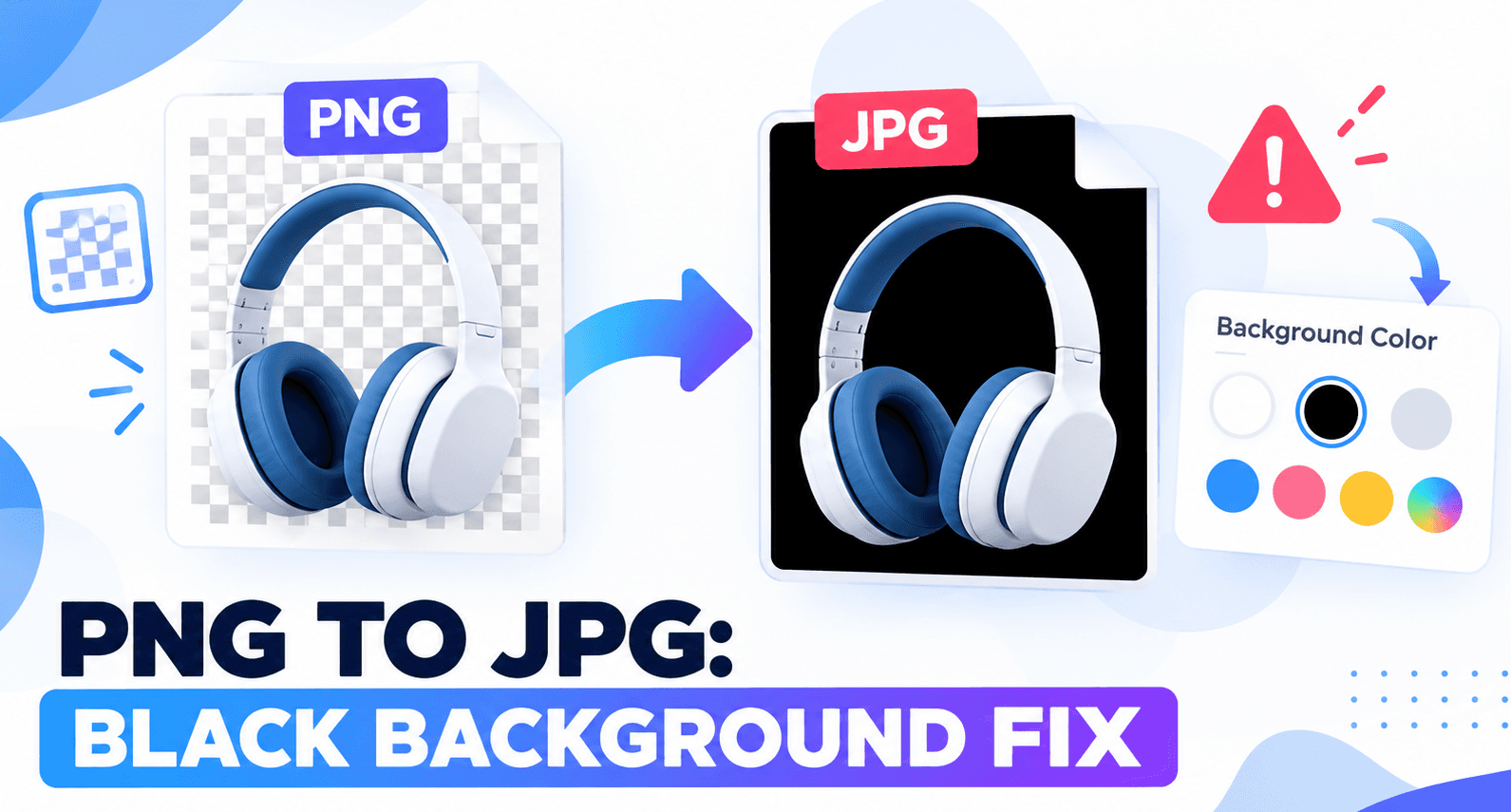
Why does PNG turn black when converted to JPG? In most cases, the PNG has clear areas. JPG cannot keep those areas clear. The tool fills them with a solid color, which may be black.
To fix it, place the original PNG on a white background before saving it as JPG. You can also choose another color.
If you need a clear background, keep the PNG instead.
Why Does PNG Turn Black When Converted to JPG?
PNG can store both color and transparency. Transparency tells an app which parts of an image should show through.
Think of a product photo with its background removed. The product stays visible. The space around it is clear.
JPG cannot store that clear space. It needs an opaque result, so the conversion process must handle those areas.
Some tools use white. Others use black or let you choose a color.
The MDN image format guide explains that PNG supports transparency, while JPG does not.
Black is not a required JPG background. It depends on how the tool handles the image.
Check Whether the Black Area Is Part of the File
A dark preview does not always mean the file has a black background.
Some viewers place clear images on a dark screen. A black logo may then seem to vanish.
Try this check:
Open the original PNG in an image editor.
Add a bright color behind it.
Look at the space around the subject.
Change that color.
If the new color shows through, the PNG still has clear areas.
Now open the JPG. If the black box stays visible, it is part of the saved image.
What you see | What to check |
|---|---|
The PNG looks black in one app | The app’s display background |
The JPG has a black box in several apps | The export background |
A thin dark line surrounds the subject | The cutout’s edges |
The whole image turns black | A file-reading or export error |
If the whole image turns black, try another app. Transparency may not be the only cause.
How to Fix a Black Background After PNG Conversion
Use the original PNG for this fix. Do not start with the black JPG if you still have the source.
1. Open the Original PNG
Load the PNG into an editor that supports clear backgrounds.
Keep an untouched copy. You may need it for a new design later.
2. Add a White Layer Behind the Image
Place a white layer beneath the subject.
You can also use a background-color setting that affects the saved file. Make sure it covers the full image area.
A preview color may only change what you see on screen. Check that the color becomes part of the export.
3. Combine the Subject and Background
This step is often called flattening.
It joins the subject and its background into one solid image. Soft edges and shadows blend into the chosen color.
Do this before saving as JPG.
4. Save a New JPG
Choose JPG or JPEG as the file type.
Pick a quality setting that suits your needs. A higher setting may reduce visible compression marks.
It will not restore clear areas or fix the wrong background.
5. Open the Saved File
Check the result outside the editor.
Look at the corners, edges, and space inside the subject. Confirm that the image has the color you chose.
Prepare the Image With ToolDit
The Tooldit Image Editor lists background-color controls in its Border & Canvas tab.
Open your PNG and set the required background. Download the result, then check that the color appears in the saved image.
If the result still needs conversion, use the Tooldit PNG Converter:
Select the prepared PNG.
Choose JPG.
Set the available quality control.
Convert the image.
Open the download and check it.
The converter notes that JPG does not keep transparency. Choose the background first rather than relying on a default color.
Why Soft Edges Need Extra Care
Not every pixel is fully clear or fully solid.
Hair, shadows, and smooth curves can have partly clear pixels. These pixels blend with the background.
Removing that information without proper blending can reveal dark edges.
For example, a soft shadow should blend into white on a white product photo. It may look harsh if exported incorrectly.
Image Magick’s guide to removing transparency explains how a chosen background is used during this step.
For most users, the key order is simple:
Choose a background, combine the image with it, then save as JPG.
Example: Fix a Logo for a White Page
Suppose you have a blue logo with a clear background.
It looks right on your website. You save it as JPG, and a black box appears around it.
Follow these steps:
Return to the original PNG.
Place the logo on white.
Check the gaps inside the design.
Save a new JPG.
Add the new file to your page.
Keep the PNG for use on other colors.
A JPG with a white background will show a white box on a dark slide.
Also check the logo’s own color. A white logo will disappear on a white background.
How to Fix a Dark Line Around the Subject
Sometimes the background looks right, but the outline stays dark.
This can happen when:
Dark pixels remain from an old background.
The tool handles partly clear edges poorly.
A previous export used a black backdrop.
JPG compression adds marks near sharp edges.
Start again from the original PNG. Blend it onto the final background before export.
If the dark line remains, the cutout may need manual cleanup.
Avoid trimming away useful parts just to hide the line. For logos and small text, PNG may be a better choice.
Can You Restore the Original Clear Background?
Saving the black JPG as PNG will not bring back the lost transparency.
The new PNG will still contain the black pixels.
Use the original transparent PNG whenever possible.
If you only have the JPG, a background remover may help create a new cutout. However, it may also remove real black details.
Fine hair, soft shadows, and dark clothing need care.
Choose PNG or JPG Based on Your Goal
Your goal | Suitable choice |
|---|---|
Keep a clear background | PNG |
Reuse a cutout on many colors | PNG |
Upload to a JPG-only form | JPG with a chosen background |
Keep small text and sharp graphics | PNG is often suitable |
Share a photo with a fixed backdrop | JPG may suit the task |
A PNG is not always transparent. It may already have a solid background.
Also, changing .png to .jpg in the filename does not convert the image. Use an export or conversion tool.
Common Mistakes to Avoid
Replacing Every Black Pixel
The subject may contain real black details.
Changing all black pixels to white can damage text, hair, clothing, or a logo.
Using the Wrong Source
A JPG that already has a black background has lost the original clear areas.
Return to the PNG instead.
Trusting Only the Preview
The preview and saved file may look different.
Always reopen the download before using it.
Raising Quality to Fix Transparency
Quality settings affect compression.
They do not choose the background or make JPG support clear areas.
Frequently Asked Questions
Why does my PNG turn white instead of black?
The tool may use white as the export background. The original image may also contain white pixels.
Can JPG have a clear background?
Standard JPG cannot store transparency. Keep PNG when you need the background to stay clear.
Does every PNG turn black when converted?
No. The problem usually involves clear areas and how the tool handles them.
A fully solid PNG has no transparency to replace.
Why does my PNG look black on my phone?
The viewer may use a dark backdrop. Place the image over another color to check it.
Will a better quality setting fix the black box?
No. Choose the correct background before export.
Can I use a color other than white?
Yes. Place the PNG on the required color, then combine the layers before saving as JPG.
Save the Image With the Right Background
Keep your original PNG. Choose a background that suits the final design.
Combine the subject with that color, then save a JPG copy.
Use the Tooldit PNG Converter when you need to change formats. Reopen the result to check the background and edges.
Also Read: Online Tools Remove Background: Guide to Clean Cutouts